

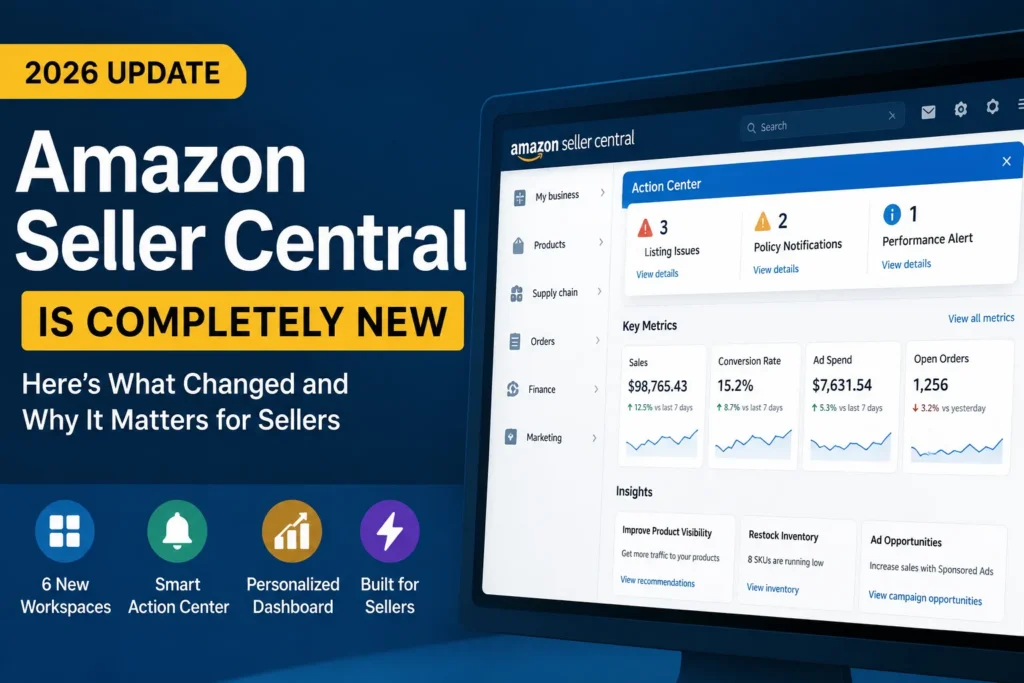
If you logged into Seller Central this year and felt momentarily lost, you are not alone. Amazon has rebuilt Seller Central from the ground up, replacing a maze of top-level menus and drop-downs with six purpose-built workspaces, a persistent Action Center, and two AI features — Seller Assistant and the newer Canvas experience — that most sellers are still figuring out how to use well.
This transition is not optional cosmetics. Amazon has confirmed that the new experience is becoming the default selling environment for every seller worldwide, with the rollout continuing in phases through August 2026, and the ability to opt back out already removed for newly registered accounts. Whether you manage one storefront or fifty SKUs across three marketplaces, you will be operating inside this interface soon, if you aren’t already.
We work inside Seller Central every single day for our clients across the UK, US, UAE, and India, so this guide isn’t a rehash of Amazon’s help documentation. It’s a practical, deep-dive walkthrough of what actually changed, where your tools moved, how the new AI features genuinely help (and where they fall short), and what smart sellers and brand owners should do next. At the end, tell us what you think of the new Seller Central in a 60-second survey — we’re compiling seller sentiment from across the UK and US into a report, and every response helps other sellers benchmark their own experience.
What Is the New Amazon Seller Central, and Why Did Amazon Rebuild It?
The new Seller Central is a redesigned selling experience built directly from seller feedback. Amazon’s own messaging on the change is candid: navigating over 200 tools scattered across disconnected pages was costing sellers time, so the entire interface was rebuilt around how sellers actually work, not around how Amazon’s internal teams organised their features historically.
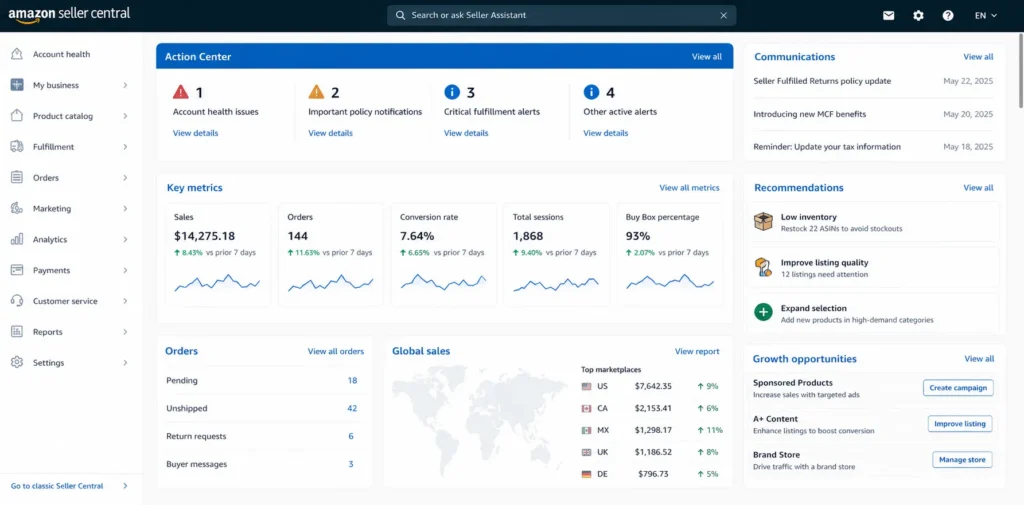
In place of the old top navigation bar and its cascading drop-down menus, the new experience organises every tool into six purpose-built workspaces, each mapped to a real business function: My business, Products, Supply chain, Orders, Finance, and Marketing. Sitting above all six is a persistent Action Center that surfaces what actually needs your attention — listing issues, policy notifications, performance alerts — instead of making you go hunting for it.
The homepage itself has changed shape too. A personalised dashboard now shows core KPIs like sales, conversion rate, and ad spend front and centre, giving you a genuine at-a-glance view of business health the moment you log in, rather than a static welcome screen. The stated goal, in Amazon’s words, is to bring the right information to you instead of making you search for it — spending less time navigating and more time acting on the opportunities Amazon already knows you have.
Who Is Affected, and What Is the Rollout Timeline?
If you are new to Amazon and were not already active in another Amazon store under your account, you are already on the new Seller Central by default. As soon as your registration is verified, this is the selling experience you land in — there is no legacy option offered at signup.
If you are an existing seller, the new Seller Central is becoming your default view in phases across stores worldwide, with Amazon targeting full completion by August 2026. Before you are automatically redirected, you’ll see a banner warning on your classic Seller Central homepage giving you advance notice. Critically, nothing about your underlying account changes in this switch: your listings, inventory, orders, settings, and third-party integrations are completely unaffected. This is an interface change, not a data migration.
One detail that has caught a lot of sellers off guard: as of June 3, 2026, Amazon removed the ability to opt out of the new Seller Central for any seller who was defaulted into it after completing registration. That change applies globally, across every store where new registrants are now routed straight to the new experience. If you registered before that policy shift and still have legacy access, you can technically still toggle back to classic Seller Central from your account settings — but treat that as a temporary bridge, not a long-term plan. Amazon has been unambiguous that classic Seller Central is being phased out entirely.
How Navigation Works in the New Seller Central
The core shift is from menu-based navigation to workspace-based navigation. Instead of hunting through nested drop-downs, you now find tools in one of three ways:
- Click directly into one of the seven tabs across the top of the homepage — My business, Products, Supply chain, Orders, Finance, and Marketing.
- Open the redesigned drop-down menu at the top-left of any page, which lists every tool grouped by the workspace it lives in.
- Type the tool’s name into the search bar at the top of the page and click straight through to it — by far the fastest option once you know roughly what you’re looking for.
Under the hood, the tools themselves haven’t disappeared or been rebuilt from scratch — the functionality is largely the same as classic Seller Central. What’s changed is where each tool sits and how it’s grouped. That’s genuinely good news: you are not re-learning Amazon selling, you are re-learning a filing system. Below, we’ve mapped exactly where your most-used tools now live, workspace by workspace.
The Three Ways to Navigate the New Seller Central
One of the biggest improvements is flexibility. Instead of relying on a single menu structure, Amazon now provides three primary navigation methods.
1. Workspace Navigation
Across the top of the homepage, you’ll see dedicated business workspaces such as:
- My Business
- Products
- Supply Chain
- Orders
- Finance
- Marketing
Each workspace acts like a department within your business, containing tools and reports related to a specific operational area.
This makes Seller Central feel much more like an enterprise business management platform rather than a collection of disconnected pages.
2. Global Navigation Menu
Clicking the menu icon in the upper-left corner opens a redesigned navigation panel.
Unlike the classic Seller Central menus, tools are grouped by workflow rather than alphabetical lists or legacy categories.
This significantly reduces the number of clicks required to complete common tasks.
3. Universal Search
Perhaps the most underrated improvement is the universal search bar.
Instead of remembering where a page lives, sellers can simply type:
- Manage Inventory
- Coupons
- Business Reports
- Voice of Customer
- Search Query Performance
- Brand Analytics
- A+ Content
Amazon immediately suggests the correct page.
For experienced sellers managing dozens of reports every day, this feature alone can save hours every month.
The Six Workspaces: Where Every Tool Now Lives
1. My Business Workspace: Your Performance Command Centre
The My business workspace is your central hub for monitoring overall business performance. It surfaces widgets giving an at-a-glance read on sales, orders, and advertising performance, plus the latest Amazon news and seller community announcements. This is also your gateway into every report Amazon generates about your account, and into the seller forums themselves.
In classic Seller Central, sales, order, and advertising snapshots each lived on separate report pages, so most sellers only checked them on a weekly or monthly cadence out of sheer friction. Surfacing them all as live widgets on a single homepage changes the incentive — a sudden ad spend spike or sales dip is now visible the moment you log in, not three days later when you finally pull the report.
| Tool | Where to find it |
| All reports | Top-right corner of My business → All reports, which opens a drop-down of every relevant report. |
| Custom Analytics | All reports → Custom Analytics (permissions required). |
| B2B reports | All reports → B2B reports. |
| Seller fulfilled reports | All reports → Seller fulfilled reports. |
| Seller Forums | Seller Forums widget → View forums. |
| Seller News | News widget → View all news. |
| Pro tip This is the workspace to check first thing every morning. Between the KPI widgets and the Action Center sitting above it, you get a genuine two-minute health check on the entire account before you dive into anything else. |
2. Products Workspace: Listings, Content & Catalogue Health
The Products workspace shows you how your catalogue is actually performing — which listings are selling well, which have status issues, and how efficiently traffic is converting. From here you add new products, manage existing listings, adjust pricing, and build out enhanced content like A+ Content and video.
This consolidation matters more than it might first appear. Previously, running a proper listing audit meant jumping between the listing editor, the A+ Content manager, the image upload tool, and the Manage experiments (Amazon’s built-in A/B testing tool) as four separate destinations. With all four living under one Manage products umbrella, it’s genuinely faster to run a full-listing refresh in a single sitting — title, bullets, images, A+ modules, and a live experiment to validate the change — rather than treating each element as an isolated task spread across different sessions.
| Tool | Where to find it |
| Add products | Add products button at the top of the page. |
| Add variation | Add products → Add variations tab. |
| Manage products | Manage products button at the top of the page. |
| Manage A+ Content | Manage products → Manage A+ content tab. |
| Manage images | Manage products → Manage images tab. |
| Manage videos | Manage products → Manage videos tab. |
| Manage experiments | Manage products → Manage experiments tab. |
| View selling applications | Manage products → View selling applications (right side of page). |
| Manage pricing | Arrow next to Manage products → Manage pricing. |
| Automate pricing | Manage pricing → Automate pricing tab. |
| Negotiated pricing | Manage pricing → Negotiated pricing tab. |
| Flexible financing | Manage pricing → Flexible financing (permissions required). |
| Analyze reviews / Manage feedback / Vine / Voice of the Customer | Analyze reviews button, then the relevant tab. |
| Research products | Research products button at the top of the page. |
| Sell globally | Sell globally button at the top of the page. |
| Pro tip Because A+ Content, images, video, and experiments now sit under one Manage products umbrella instead of separate menu items, this is the workspace where a professional Amazon listing optimization pass has the biggest visible impact — everything that shapes conversion rate lives in one place. |
3. Supply Chain Workspace: Inventory, FBA & Shipments
The Supply chain workspace tracks stock levels, shipment status, and storage utilisation in one place. It surfaces widgets for inventory performance, shipment performance, aged inventory, storage utilisation, capacity management, and defects and reimbursements — and it’s where you manage inventory across FBA, Amazon Warehousing and Distribution (AWD), and seller-fulfilled channels.
Bringing FBA, AWD, and seller-fulfilled inventory into one workspace reflects a real shift in how Amazon expects sellers to think about fulfilment — as one blended supply chain rather than separate silos. If you’re actively testing AWD to reduce storage costs or manage seasonal overflow, having Manage AWD inventory sit as a tab alongside standard FBA inventory management, rather than buried in a completely separate section, makes it far more likely you’ll actually compare the two options side by side instead of defaulting to whichever one you set up first.
| Tool | Where to find it |
| Supply chain reports | Top-right corner of Supply chain → Supply chain reports. |
| FBA inventory reports | Supply chain reports → FBA inventory reports. |
| Manage Amazon inventory | Manage Amazon inventory button at the top of the page. |
| Inventory performance dashboard | Manage Amazon inventory → Capacity Monitor → Inventory → Inventory Performance. |
| Manage stranded inventory | Manage Amazon inventory → Capacity Monitor → Inventory → Fix stranded inventory. |
| Manage unfulfillable inventory | Manage Amazon inventory → Capacity Monitor → Inventory → Unfulfillable inventory. |
| Manage AWD inventory | Manage Amazon inventory → Manage AWD inventory tab. |
| Manage shipments | Arrow next to Send inventory → Manage shipments. |
| Send to Amazon | Manage shipments → Send to Amazon (right side of page). |
| Create shipment | Arrow next to Send inventory → Create shipment. |
| Pro tip Sellers running lean inventory buffers should bookmark the Inventory performance dashboard specifically — it’s now three clicks deep instead of a single menu item, and it’s the fastest early-warning system you have for stranded or unfulfillable stock before it turns into long-term storage fees. |
4. Orders Workspace: Fulfilment, Returns & Claims
The Orders workspace manages customer orders from purchase through delivery. It shows widgets for order fulfilment status, delivery rates, return rates, claim overviews, and return insights, and it’s where you handle returns and resolve claims.
Claims and returns used to be two of the most scattered workflows in classic Seller Central, often requiring sellers to cross-reference a return record against a separate Safe-T claim submission with no shared view of the two. Grouping Resolve claims and Manage returns inside a single workspace, alongside a dedicated Returns insights tab, is a genuine quality-of-life improvement for sellers dealing with damaged-in-transit disputes or reimbursement claims on a regular basis.
| Tool | Where to find it |
| Manage orders | Manage orders button at the top of the page. |
| Manage quotes | Manage orders → Manage Quotes (permissions required). |
| Manage other channels | Manage orders → Manage Other Channels. |
| Create MCF order | Manage orders → Create MCF order tab. |
| Upload order files | Manage orders → Upload order files tab. |
| Manage returns | Manage returns button at the top of the page. |
| Returns insights | Manage returns → Returns insights tab. |
| Resolve claims | Resolve claims → Manage Safe-T claims tab. |
| Shipping performance | Delivery rates widget → View shipping performance. |
| Pro tip The Returns insights tab is genuinely new functionality worth exploring — it aggregates return reasons in a way the classic interface never surfaced cleanly, and it’s often the fastest route to spotting a listing or packaging issue driving avoidable returns. |
5. Finance Workspace: Payments, Fees & Tax
The Finance workspace is where you understand profitability, fees, and overall financial performance. It shows widgets for sales and net proceeds, and for payments and disbursements, and it’s where you handle business reports, payments across statement periods, and tax tasks.
Tax compliance work also benefits from this regrouping. The Tax document library sitting directly under Manage Taxes, rather than requiring a separate navigation path, makes it noticeably faster to pull VAT invoices or 1099-K documentation during quarterly filing periods — a small change, but one that adds up across a full financial year for sellers managing tax obligations in more than one country.
| Tool | Where to find it |
| Payment reports | Top-right corner of Finance → Finance reports → Payment reports. |
| Manage taxes | Manage Taxes button at the top of the page. |
| Tax document library | Manage Taxes → Tax document library. |
| Manage payments | Manage payments button at the top of the page. |
| Lending | Manage payments → Lending tab. |
| Seller Wallet | Manage payments → Seller Wallet tab (permissions required). |
| Currency Converter | Manage payments → Currency conversion tab. |
| Pro tip This is where multi-marketplace sellers should pay closest attention. If you sell across both the UK and US, the Currency Converter and Seller Wallet tabs — now grouped together under Manage payments — make it far easier to see disbursement timing and conversion costs side by side than the old, split-menu version ever did. |
6. Marketing Workspace: Promotions, Deals & Advertising
The Marketing workspace is where you build and manage your promotional strategy — expanding reach and boosting product visibility. It shows widgets for promotion offers, advertising performance, and discounts, and it’s your entry point to deals, coupons, promotions, Prime-exclusive discounts, and your advertising campaigns.
Pairing promotions and advertising in one workspace also nudges sellers toward better strategic thinking, whether or not that was Amazon’s explicit intent. Coupons, deals, and Prime-exclusive discounts sit right alongside the Ads Console, making it easier to spot the connections that actually drive results — like layering a coupon on top of a Sponsored Products push during a launch window, instead of running the two levers on entirely separate timelines because they used to live in unrelated corners of the interface.
| Tool | Where to find it |
| Manage Promotions | Manage promotions and deals button at the top of the page. |
| Manage Deals | Manage promotions and deals → Manage deals tab. |
| Manage Coupons | Manage promotions and deals → Manage coupons tab. |
| Manage Brand Tailored Promotions | Manage promotions and deals → Brand Tailored Promotions tab (permissions required). |
| Manage Price Discounts | Manage promotions and deals → Manage price discounts tab. |
| Brand Analytics | Brand analytics button at the top of the page. |
| Ads Console | Ads console button at the top of the page. |
| Manage Stores | Arrow next to Ads console → Manage Stores. |
| Pro tip The advertising performance widget sitting directly on this workspace’s homepage is a small but meaningful change — you can now see whether ACoS and TACoS are trending in the right direction without opening the full Ads Console, which makes daily monitoring genuinely faster for anyone managing Amazon PPC across several campaigns. |
Quick Reference: Classic Seller Central Menu → New Seller Central Workspace
If you’re used to the old top-menu structure and just need a fast lookup while you get your bearings, here’s a condensed cheat sheet mapping the most commonly used classic menu paths to their new workspace home.
| Classic menu path | New workspace location |
| Inventory > Manage Inventory | Supply chain → Manage Amazon inventory |
| Inventory > Add a Product | Products → Add products |
| Inventory > Manage FBA Shipments | Supply chain → Manage shipments |
| Advertising > Campaign Manager | Marketing → Ads console |
| Advertising > Brand Analytics | Marketing → Brand analytics |
| Pricing > Manage Pricing | Products → arrow next to Manage products → Manage pricing |
| Orders > Manage Orders | Orders → Manage orders |
| Orders > Manage Returns | Orders → Manage returns |
| Reports > Business Reports | My business → All reports |
| Reports > Payments | Finance → Finance reports → Payment reports |
| Performance > Account Health | Top navigation bar → Account Health (always visible) |
| Performance > Notifications | Account Health → Performance Notifications tab |
| Growth > A+ Content Manager | Products → Manage products → Manage A+ content |
| Growth > Coupons | Marketing → Manage promotions and deals → Manage coupons |
| Settings > Account Info | Gear icon (top right) → Settings |
| Settings > User Permissions | Gear icon → User permissions |
Bookmark this table, but don’t lean on it forever — the search bar at the top of any page will get you to the same destination faster once you’ve made the switch a habit.
Preparing Your Team for the Transition: A Short Checklist
If you manage Amazon with a team — whether that’s an in-house ops person, a virtual assistant, or an agency — the interface change is as much a change-management exercise as it is a UI update. A few practical steps make the transition smoother:
- Audit your SOPs first. Any documented process with screenshots or click-by-click instructions referencing classic Seller Central menu items needs updating before your team hits a wall mid-task.
- Assign one person to own the transition. Even in a two-person operation, having a single owner who explores the new workspaces first and briefs everyone else prevents duplicated confusion.
- Re-test your reporting cadence. If your weekly or monthly reporting pulls from specific report pages, confirm those reports still export the same fields in the new location before your next reporting cycle.
- Check third-party tool permissions. SP-API integrations carry over automatically, but it’s worth a quick spot-check that your repricers, inventory forecasting tools, and PPC software are still pulling data correctly post-transition.
- Set a recurring Action Center check. Build it into your daily or weekly rhythm the same way you would a stock check or an ads review — it’s the fastest way to make the new Action Center pay for itself.
Account Health and Settings: Always One Click Away
Account Health and account-level settings sit outside the six workspaces entirely, accessible directly from the top navigation bar so you can check account status or update preferences from anywhere in the new Seller Central.
| Tool | Where to find it |
| Account Health | Account Health in the top navigation bar. |
| Performance Notifications | Account Health → Performance Notifications tab. |
| User Permissions | Gear icon → User permissions. |
| Settings | Gear icon → Settings. |
| Manage Accounts | Gear icon → Settings → Manage Accounts (permissions required). |
| Notification Preferences | Gear icon → Settings → Notification preferences. |
| Return Settings | Gear icon → Settings → Return settings. |
| Shipping Settings | Gear icon → Settings → Shipping settings. |
| Tax Settings | Gear icon → Settings → Tax settings. |
| FBA Settings | Gear icon → Settings → FBA settings. |
| Manage your apps | Gear icon → Settings → Manage your apps. |
| Manage your certifications | Gear icon → Settings → Manage your certifications. |
Keeping Account Health visible at all times, regardless of which workspace you’re in, was a deliberate design choice — Amazon has been steadily tightening enforcement around account health metrics, and putting the summary permanently in the top bar removes any excuse for missing a warning before it escalates into a suspension risk.
Seller Assistant: What the AI Chat Feature Actually Does
Seller Assistant is the conversational AI layer built into the new Seller Central, designed to answer seller questions and surface guidance without you having to dig through Amazon’s help pages. It opens with a simple prompt: “Hi, I’m your Amazon Seller Assistant — here to help grow your business with data-driven insights and expert guidance. Ask me anything about selling or select a topic below to get started.”
From there, sellers can either type a free-form question or select from a set of suggested topics. In practice, the topic list covers the questions that generate the highest volume of seller-support tickets, including:
- Understanding Amazon fees
- Popular Amazon programmes to enrol in
- How FBA works
- How to list products
- Multi-Channel Fulfilment features
- The Account Health Rating System
- Best listing practices
- How to manage inventory and improve inventory health
- How to improve Best Seller Rank
- Ways to increase brand awareness
- Discount programmes offered by Amazon
- How to increase sales
- Why sellers should register their brand
What makes Seller Assistant more than a glorified FAQ bot is that it’s account-aware. Ask it something like “why did my conversion rate drop last week” or “what’s affecting my account health right now,” and it pulls context from your actual account data rather than giving you a generic policy explanation. Amazon has said sellers act on Seller Assistant’s recommendations roughly 90% of the time, which suggests the guidance is landing as genuinely relevant rather than being ignored as boilerplate.
Seller Assistant runs on Amazon Bedrock, using a mix of Amazon Nova and Anthropic Claude models under the hood, and Amazon has been explicit that this is agentic — meaning it’s built not just to answer questions, but to plan multi-step tasks and, over time, take more actions on a seller’s behalf. Today, the human still makes the final call on anything that touches money or listings; Amazon has said the roadmap includes Seller Assistant executing more actions directly, such as creating restock orders or adjusting pricing, but sellers stay in the approval loop for now.
Where sellers get the most value out of Seller Assistant early on is exactly where it’s designed to help: fast, accurate answers to the recurring operational questions that used to mean opening a support case or digging through help articles — freeing up time for the strategic decisions that actually move revenue.
Canvas: Amazon’s New AI-Powered Sales & Cost Analysis Workspace
Canvas is the newer, more advanced sibling to Seller Assistant, launched March 3, 2026 for all sellers in the US and UK at no additional cost. Where Seller Assistant answers questions in a chat window, Canvas builds an entire interactive, visual workspace around your answer — dashboards, charts, and scenario simulations that update in real time as you keep asking follow-up questions.
Amazon’s own framing is that this is “the difference between giving someone a better calculator and giving them a financial advisor who really understands their business inside and out.” Practically, that means a seller can type something like “can you analyze my sales performance?” and Canvas assembles a dashboard pulling from Business Reports, advertising spend, and inventory data simultaneously — work that previously meant manually exporting and stitching together three or four separate reports.
To access it, open the new Seller Central experience on desktop and select Access canvases at the bottom of the left-side panel. If you haven’t switched to the new experience yet, use the New Seller Central toggle at the top right of the screen first.
What Canvas Can Actually Do Today
- Sales and profitability analysis — ask for revenue and profit trends by ASIN, marketplace, date range, or fulfilment channel, and Canvas builds an interactive chart pulling from Business Reports, P&L metrics, and advertising spend in one view.
- What-if scenario modelling — ask questions like “what happens to my margins if FBA fees increase 5%” or “project my sales if I increase ad spend by £2,000 a month on these ASINs,” and Canvas runs a simulation against your historical data to show projected outcomes.
- Inventory visualisation — Canvas can map your catalogue by inventory velocity, days of supply, and restock recommendations, flagging when a sales velocity change puts previously safe inventory coverage at risk.
- Advertising and marketing analysis — Canvas can evaluate campaign spend, impressions, conversions, and product-level sales impact, then propose alternative strategies, adjusting projections instantly as you change spend or targeting inputs.
- Conversational refinement — every answer is a starting point, not an endpoint. You can ask follow-up questions, request a different visualisation, or drill into a single ASIN, and the canvas rebuilds itself around the new question.
Where Canvas Currently Falls Short
- Data lag — Canvas dashboards reflect data that can be 24–48 hours old, the same latency as standard Seller Central reports. It is not a real-time feed.
- No true cost-of-goods integration — you cannot input your actual COGS, so profit and margin calculations are based on Amazon’s fee structure only, not your full landed cost. For genuine net-profit tracking, you’ll still need to layer in your own accounting data.
- US and UK only, for now — Amazon has confirmed EU marketplace expansion is planned, with Japan and Australia to follow, and non-English language support arriving later in the year, but if you sell in other regions, Canvas isn’t there yet.
- Best for exploration, not deep cross-channel reporting — Canvas is genuinely strong for quick, on-the-fly analysis inside Seller Central, but it doesn’t replace a dedicated analytics stack for sellers running multi-channel operations across Amazon, Shopify, and retail simultaneously.
The practical takeaway: Canvas is a meaningful upgrade for day-to-day decision-making, and every seller should be using it as their first stop for quick performance questions. But because it can’t see your true cost of goods or your non-Amazon channels, it works best paired with a strategic partner who can turn Canvas’s on-platform insights into a full-picture growth plan — which is exactly the gap a full-service Amazon performance marketing agency exists to close.
The Honest Take: What Sellers Are Saying About the Change
We’d be doing you a disservice if this guide only covered the upside. Seller forum threads since launch have been mixed, and it’s worth knowing what to expect before you’re caught off guard.
The most common complaint isn’t about functionality disappearing — it’s about muscle memory. Sellers who have run their accounts inside classic Seller Central for years describe the new layout as genuinely disruptive to daily workflows, even when every tool they need still technically exists somewhere in the new structure. “It looks like a huge change, but it’s a similar path” is a phrase that shows up repeatedly in Amazon’s own community responses to confused sellers — which is accurate, but doesn’t make the relearning curve any less real in week one.
There have also been scattered reports of rough edges during rollout: pages that load inconsistently, order screens that spin without resolving, and general “it’s not broken, it’s just different” frustration that tends to accompany any large-scale interface migration. Amazon has acknowledged this feedback publicly and has said its teams are actively logging seller input for further refinement.
Our honest recommendation, based on running client accounts through this transition already: give yourself a genuine adjustment period rather than fighting the new structure. Spend twenty minutes exploring each workspace before you need to use it under time pressure. Get in the habit of checking the Action Center first thing every morning — it is, without question, the single biggest efficiency win in the new design once it becomes routine. And if your team runs on documented SOPs, update your screenshots and click-paths now, because the old ones are already out of date.
It’s also worth separating two different kinds of complaints in the seller community, because they call for different responses. Complaints about tools being genuinely harder to reach, or core functionality behaving inconsistently, are legitimate product feedback worth escalating to Amazon through the seller forums or your account manager. Complaints that amount to “this is different from what I’m used to” are a normal, temporary cost of any redesign, and tend to resolve themselves within a few weeks of regular use. Recognising which category a given frustration falls into will save your team a lot of unnecessary stress during the transition period.
How to Switch Between Classic and New Seller Central
If the new Seller Central isn’t your default experience yet, you can access it any time. Scroll to the top of any Seller Central page and click the New Seller Central toggle. This opens the new experience immediately.
If you still have the ability to switch your default experience back to classic Seller Central — remember, this option was removed for anyone defaulted into the new experience after June 3, 2026 — here’s how:
- Go to the top-right corner of any new Seller Central page.
- Click the settings gear icon.
- Select Default selling experience and choose Classic Seller Central.
- Confirm the change when prompted.
| Note One quirk worth knowing: once you’re in classic Seller Central, any page you click will actually open in the new Seller Central interface. Amazon is clearly treating classic Seller Central as a temporary landing point during the transition, not a fully preserved parallel system — plan your workflows accordingly. |
What This Means If You Run Amazon as a Serious Channel
For casual or single-SKU sellers, the new Seller Central is mostly a matter of learning where things moved. For brands running Amazon as a serious revenue channel — multiple ASINs, active PPC spend, A+ Content, international expansion — the stakes are a little higher, because the tools that drive growth (Manage pricing, Ads Console, Brand Analytics, Custom Analytics) all now live behind slightly different click-paths than the SOPs your team has followed for years.
This is also precisely the moment where AI-native tools like Seller Assistant and Canvas start to matter competitively. Sellers who learn to use them well will genuinely move faster than sellers who ignore them and keep pulling manual reports. But there’s a real limitation worth being blunt about: Canvas shows you what’s happening inside Amazon’s data. It cannot see your true cost of goods, your Shopify or retail performance, your supplier lead times, or how your PPC strategy should evolve against a shifting competitive set. Amazon’s own AI is a mirror held up to your Amazon account — a good one, but still just a mirror.
That’s the gap a full-service Amazon and ecommerce marketing agency is built to close: turning Canvas and Seller Assistant’s on-platform signals into an actual strategy — PPC campaign architecture, A+ Content and listing optimisation, Seller Central account management, and SEO that compounds beyond what any single dashboard can show you. If you’d rather have a specialist team navigating the new workspaces, running your Amazon PPC, and interpreting Canvas’s output on your behalf than doing it yourself between other priorities, that’s exactly the work we do daily for brands across the UK, US, UAE, and India.
There’s also a timing argument worth making explicitly. Every seller and every agency is relearning the new Seller Central at roughly the same moment, which means the competitive advantage right now doesn’t go to whoever has used Amazon the longest — it goes to whoever adapts fastest to Seller Assistant, Canvas, and the new workspace structure, and turns that adaptation into faster decisions. Brands that treat this transition as a minor inconvenience to work around will spend the next few months operating slower than brands that treat it as a genuine opportunity to tighten their PPC, listing, and inventory processes. The interface reset is, in a real sense, a rare moment where the playing field briefly levels — and the sellers who lean into the new tools instead of resisting them are the ones who’ll be ahead of the curve by Q4.
New interface aside, the fundamentals of winning on Amazon haven’t changed: strong PPC management, optimised listings, and a Seller Central account that’s actively monitored, not just occasionally checked. If you’re weighing up whether to handle the new Seller Central in-house or bring in specialist help, here are ten agencies worth having on your shortlist across the UK and US markets in 2026.
Top 10 Amazon Agencies in the UK & USA for 2026
| Rank | Agency | Markets | Core Services | Key Strengths | Best For |
|---|---|---|---|---|---|
| 1 | EcomRanker | UK, USA, UAE & India | Amazon PPC, Listing Optimisation, Seller Central Management, A+ Content, Brand Store Design, Technical SEO, White Label Services | Complete end-to-end Amazon growth partner with PPC, SEO, Creative Design, Seller Central expertise and AI-powered workflows. | Brands looking for one agency to manage every aspect of Amazon growth. |
| 2 | SellerApp | UK & USA | PPC, Analytics, Keyword Research, Account Management | AI bidding technology, proprietary analytics platform and advanced reporting. | Data-driven Amazon brands. |
| 3 | My Amazon Guy | USA | PPC, SEO, Listings, Design, Catalog Management | Transparent methodologies with extensive educational content. | Brands wanting a recognised Amazon agency. |
| 4 | BellaVix | USA | Amazon Account Management, PPC, Listing Optimisation | Dedicated account managers and personalised support. | Businesses wanting close communication. |
| 5 | Canopy Management | USA | Amazon, Shopify, Google Ads, Meta Ads | Integrated omnichannel ecommerce strategy. | Multi-channel ecommerce brands. |
| 6 | Olifant Digital | USA | PPC, SEO, Account Health | Senior-level Amazon account management. | Established Amazon sellers. |
| 7 | Tinuiti | North America | Enterprise Amazon Marketing, DSP, Performance Marketing | Enterprise reporting and cross-channel expertise. | Large enterprise organisations. |
| 8 | Lezzat | United Kingdom | PPC, DSP, Creative Production | Amazon sellers with in-house photography and creative team. | UK brands needing creative services. |
| 9 | AMZ Dudes | USA | Amazon PPC | Category-focused advertising optimisation. | Competitive marketplace sellers. |
| 10 | Awesome Dynamic | USA | PPC, Marketplace Management | Profit-first campaign management. | Brands focused on sustainable growth. |
1. EcomRanker
EcomRanker is a full-service Amazon and ecommerce marketing agency, founded in 2017 and serving brands across the UK, US, UAE, and India. What sets EcomRanker apart is genuine end-to-end coverage under one roof: Amazon PPC management, listing optimisation, Seller Central account management, technical SEO, A+ Content and store design, and white-label agency services for partners who need Amazon expertise without building an internal team. Rather than treating the new Seller Central as a support-ticket problem, EcomRanker’s account managers are already fluent in the six-workspace structure, Seller Assistant, and Canvas — meaning clients get the benefit of the new AI tools translated into an actual growth plan, not just a faster dashboard. For brands specifically targeting the UK market, EcomRanker’s sister brand, amazonadsagency.com, focuses on UK and US Amazon Ads strategy in even greater depth. Best for: brands that want a single accountable partner across PPC, listings, design, and SEO, in the UK, US, UAE, or Indian markets.
2. SellerApp
A decade-plus of Amazon marketplace experience, with a strong analytics and technology backbone behind its PPC and account management services. SellerApp pairs proprietary bid-intelligence and keyword-tracking software with human account strategists, which tends to appeal to brands that want data-heavy reporting alongside hands-on management. Its scale — thousands of managed accounts across UK and US marketplaces — means processes are mature and well-documented, though larger agencies can sometimes mean less flexibility for highly bespoke account structures. Best for: established UK and US brands wanting a technology-driven partner with a long, verifiable track record.
3. My Amazon Guy
A high-volume US agency with broad name recognition, offering PPC, SEO, design, and catalogue optimisation services under one roof. The agency has built a large following through prolific educational content — YouTube breakdowns, podcasts, and public case studies — which gives prospective clients an unusually transparent look at their methodology before signing on. That visibility comes with genuine scale, meaning account teams can vary depending on package tier. Best for: US-based brands who want a recognisable name and appreciate an agency that publishes its thinking publicly.
4. BellaVix
Specialises in Amazon account management and PPC, with a reputation for hands-on strategic guidance and responsive communication. Client feedback consistently points to strong listing optimisation work paired with active ad management, with reported outcomes including meaningfully improved ROAS and reduced wasted ad spend. The agency tends to work closely with a dedicated point of contact rather than a rotating support queue. Best for: brands wanting close day-to-day contact with a consistent account team rather than a self-serve platform model.
5. Canopy Management
A full-funnel eCommerce growth agency spanning Amazon, Shopify, Meta, and Google, built for brands that want their Amazon strategy integrated with broader digital marketing rather than managed as an isolated channel. Canopy’s positioning leans heavily on cross-channel customer acquisition, connecting marketplace optimisation with off-Amazon traffic driving. This integrated approach suits brands that see Amazon as one part of a wider growth strategy rather than their sole sales channel. Best for: brands running Amazon alongside a serious DTC or multi-platform advertising operation.
6. Olifant Digital
A full-service Amazon agency built around senior-level account management, with PPC, SEO, and account health work handled without delegation to junior staff. This structure is a deliberate differentiator, aimed squarely at brands that have previously been assigned rotating or inexperienced account managers at larger, more process-driven agencies. Reviews consistently cite responsiveness and strategic depth as strengths. Best for: established brands that have outgrown a junior-staffed agency and want senior eyes on every decision.
7. Tinuiti
One of the larger independent performance marketing agencies in North America, working across Amazon, Google, Meta, and streaming media for enterprise-scale brands. Its size brings genuine advantages — deep bench strength across specialisms, sophisticated reporting infrastructure, and negotiating leverage with ad platforms — but also means minimum spend thresholds that put it out of reach for smaller and mid-market sellers. Best for: larger organisations with substantial, multi-platform ad budgets and complex reporting requirements.
8. Lezzat
A London-based agency covering PPC, DSP, listing optimisation, and creative production including in-house photography, with a team that includes practising Amazon sellers. That seller-operator background shows up in the practical, margin-focused tone of their strategic recommendations rather than a purely theoretical approach to campaign structure. Their in-house creative capability is a genuine differentiator for brands that also need photography and video alongside PPC and listing work. Best for: UK brands prioritising local market knowledge and in-house creative production.
9. AMZ Dudes
A PPC-focused agency with deep specialisation in Sponsored Products optimisation and data-driven campaign management, serving brands across major US metro markets with increasing UK and EU expansion support. The agency’s positioning centres on category-specific advertising nuance rather than generic bid automation, which resonates with sellers in competitive categories where broad-brush PPC tactics underperform. Best for: US sellers in competitive categories wanting a PPC specialist rather than a full-service generalist.
10. Awesome Dynamic
A PPC-focused agency known for consistent communication and timely campaign management, with client feedback centred on steady sales and profit growth over aggressive, high-risk scaling tactics. This conservative, profit-first approach tends to appeal to brands that have been burned by agencies chasing top-line revenue growth at the expense of margin. Best for: sellers who prioritise steady, sustainable account growth over rapid but risky scaling.
Whichever partner you choose, ask every agency on your shortlist the same question: how are you actually using Seller Assistant and Canvas inside client accounts today? The new Seller Central rewards teams that adapt fast — and that’s as true for agencies as it is for sellers managing their own accounts.
New Amazon Seller Central: Frequently Asked Questions
Q1. What is the new Amazon Seller Central?
It’s a redesigned version of Seller Central built around six purpose-built workspaces — My business, Products, Supply chain, Orders, Finance, and Marketing — plus a persistent Action Center and a personalised KPI dashboard, replacing the old top-menu navigation structure.
Q2. Is the new Seller Central mandatory?
It’s becoming the default selling experience for every seller globally, with the rollout continuing in phases through August 2026. As of June 3, 2026, sellers defaulted into the new experience after registration can no longer opt out.
Q3. Will the new Seller Central change my listings, inventory, or account settings?
No. Amazon has been explicit that this redesign is purely a matter of information organisation. Your listings, inventory, order history, SP-API integrations, advertising campaigns, promotions, and FBA settings are all unaffected.
Q4. How do I switch to the new Seller Central experience?
Scroll to the top of any Seller Central page and click the New Seller Central toggle in the upper corner of the dashboard. The system switches you into the new interface immediately.
Q5. Can I still switch back to classic Seller Central?
Only if you haven’t been defaulted into the new experience post-registration after June 3, 2026. If you do have access, go to the settings gear in the top-right corner, select Default selling experience, and choose Classic Seller Central. Note that clicking any page from classic Seller Central will still open it in the new interface.
Q6. What are the six workspaces in the new Seller Central?
My business, Products, Supply chain, Orders, Finance, and Marketing. Each groups the tools relevant to that area of your business, replacing the old drop-down menu structure.
Q7. Where did Manage Inventory move to in the new Seller Central?
It’s now inside the Supply chain workspace, under Manage Amazon inventory at the top of the page — the same core functionality, just regrouped alongside shipments, AWD inventory, and capacity monitoring tools.
Q8. Where do I find Advertising and PPC campaigns now?
The Ads Console lives inside the Marketing workspace, alongside Manage Stores, Brand Analytics, and your promotions and deals tools.
Q9. Where is A+ Content in the new Seller Central?
Inside the Products workspace, under Manage products → Manage A+ content tab, alongside Manage images, Manage videos, and Manage experiments.
Q10. What is Seller Assistant?
Seller Assistant is Amazon’s built-in AI chat tool inside the new Seller Central. It answers seller questions about fees, FBA, listing practices, account health, and more, and it’s account-aware, so its guidance reflects your actual account data rather than generic policy text.
Q11. What is Canvas in Seller Central?
Canvas is an AI-powered visual workspace, launched March 3, 2026, that builds interactive dashboards and what-if scenario simulations from your sales, inventory, and advertising data in response to natural-language questions. It’s available at no extra cost to US and UK sellers, with wider regional rollout planned.
Q12. How do I access Canvas?
Open the new Seller Central experience on desktop and select Access canvases at the bottom of the left-side panel. You’ll need to have switched to the new Seller Central experience first.
Q13. Does Canvas show real-time data?
No — Canvas dashboards currently reflect data up to 24–48 hours old, consistent with standard Seller Central reporting latency, not a live feed.
Q14. Can Canvas calculate my true profit margin including cost of goods?
Not yet. Canvas’s profit calculations are based on Amazon’s fee structure only; it doesn’t currently let you input your cost of goods sold, so it won’t reflect your full landed-cost profitability without a separate accounting tool layered on top.
Q15. Is Canvas available outside the US and UK?
Not currently. Amazon has said EU marketplace expansion is planned, with Japan and Australia to follow, and additional language support arriving later in the year.
Q16. What AI models power Seller Assistant and Canvas?
Both run on Amazon Bedrock, using a combination of Amazon Nova and Anthropic Claude models, according to Amazon’s own announcements.
Q17. Why does Seller Central keep changing its interface?
Amazon has said the redesign responds directly to seller feedback about tool fragmentation across 200+ disconnected pages. That said, frequent interface changes are a genuine and recurring frustration among sellers, and this guide won’t pretend otherwise — expect an adjustment period, and expect Amazon to keep iterating based on further feedback.
Q18. Do my team members and secondary users need to be re-added after the switch?
No. Your team members and secondary users transition automatically along with the rest of your account — no re-invitation or re-permissioning is required.
Q19. Should I hire an agency to help manage the new Seller Central?
If Amazon is a meaningful part of your revenue and you don’t have in-house bandwidth to relearn workflows, monitor Account Health daily, and actively use Seller Assistant and Canvas alongside PPC and listing optimisation, a full-service Amazon agency typically pays for itself quickly — both in time saved and in performance gains from consistent, expert account management.
Q20. Does the new Seller Central affect Vendor Central accounts?
No. The redesign covers Seller Central, used by third-party marketplace sellers. Vendor Central, used by 1P suppliers selling directly to Amazon, is a separate platform and isn’t part of this rollout.
Q21. Will my Amazon agency need retraining to work in the new Seller Central?
A competent, actively-operating Amazon agency should already be fluent in the new workspaces, Seller Assistant, and Canvas — this is a reasonable question to ask any agency you’re evaluating, since it directly reflects how current their operational knowledge is.
Q22. Can I use Seller Assistant and Canvas on mobile?
The core new Seller Central experience is available across desktop and the Amazon Seller app, but Canvas’s full interactive dashboard experience is currently built for and best used on desktop, per Amazon’s own guidance.
Q23. Where can I give Amazon feedback on the new Seller Central?
Amazon actively monitors seller forum threads and in-platform feedback prompts for the new experience. You can also share your experience in the survey at the end of this guide, which we use to track UK and US seller sentiment over time.
Q24. Will my old bookmarked Seller Central links stop working after the switch?
A: Most saved bookmarks will still get you into Seller Central, but the specific page they point to is being restructured, so an old menu-item link may redirect you into the new workspace layout rather than the exact tool you expected. Amazon has confirmed that once you’re inside the new experience, clicking through from classic Seller Central lands you back in the new interface too, so treat any saved click-paths or team SOP screenshots as temporary and update them using the workspace mapping in this guide rather than relying on old bookmarks long-term.
Q25. Do Seller Assistant and Canvas cost extra to use?
A: No — both are included in the new Seller Central experience at no additional cost. Canvas launched free for all US and UK sellers, and Seller Assistant is built directly into the core interface rather than sold as an add-on, so there’s no separate subscription or upgrade required to access either tool once you’re on the new Seller Central.
Tell Us What You Think of the New Seller Central
We’re building an ongoing benchmark of how UK and US sellers actually feel about the new Seller Central, Seller Assistant, and Canvas — not Amazon’s press release version, the real one. It takes about a minute, and every response helps other sellers calibrate their own experience against the wider community.
- How would you rate your overall experience with the new Seller Central so far?
- Which workspace do you use most often (My business, Products, Supply chain, Orders, Finance, Marketing)?
- Have you used Seller Assistant? How helpful did you find it?
- Have you used Canvas? What did you ask it, and was the answer useful?
- What’s the single biggest frustration you’ve had with the new interface?
- Would you recommend other sellers switch early, or wait for Amazon’s forced rollout?
- Are you currently working with an Amazon agency, or managing your account in-house?
- Optional: your name, brand, and email, if you’d like early access to our full seller sentiment report.
Submit your responses through the form below, or drop your answers in the comments — we read every single one, and we’ll share the aggregated results with the seller community once we’ve collected enough responses across both markets.
Final Thoughts
The new Seller Central is a genuine step forward once you’re through the adjustment period — workspaces are a more logical grouping than the old menu structure, the Action Center is a real efficiency win, and Seller Assistant and Canvas both offer real capability, not just AI window dressing. But new navigation and smarter dashboards don’t sell more product on their own. Ranking, converting, and scaling profitably on Amazon in 2026 still comes down to the fundamentals: sharp PPC management, listings built to convert, and an account that’s actively monitored rather than checked once a month.
If you’d rather have a specialist team handling the new workspaces, running PPC, and interpreting what Canvas is telling you, EcomRanker’s team manages all of it end-to-end for brands across the UK, US, UAE, and India. Get in touch for a free Seller Central and PPC audit, and let’s see what’s actually holding your account back.