
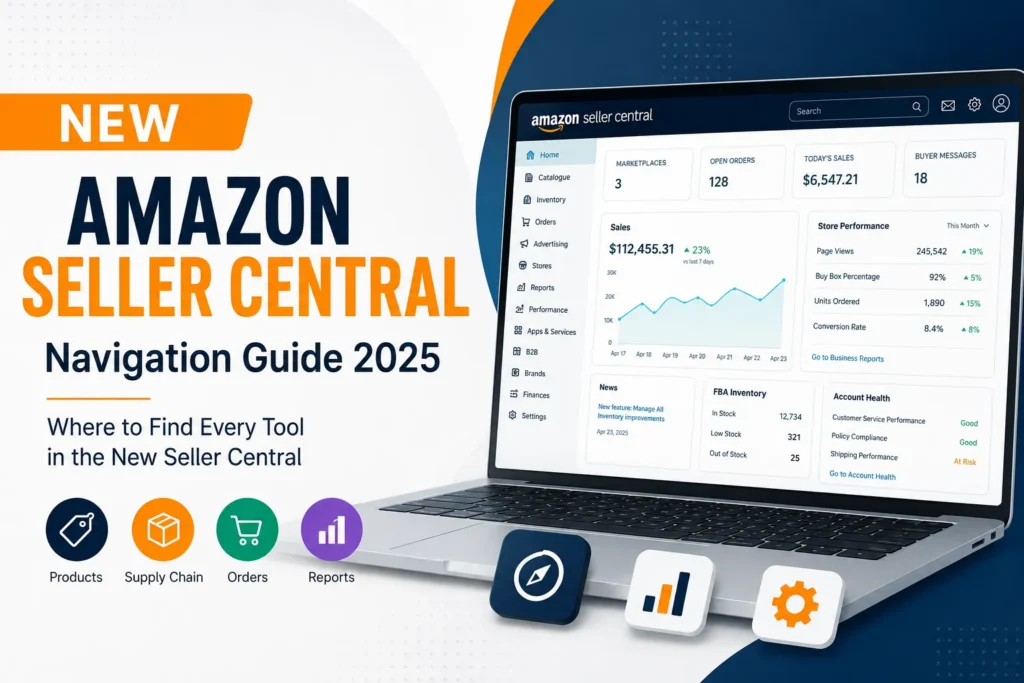
If you have logged into Amazon Seller Central recently and thought, “Where has that tool gone?”, you are not alone.
Amazon has changed how key areas of Seller Central are organised, and familiar tools may no longer appear where experienced sellers expect them. Tasks such as editing listings, checking FBA inventory, reviewing payments, finding reports or managing advertising can now feel harder simply because the navigation has changed. The good news is that many of these tools have not disappeared. They are often grouped differently within the new Seller Central experience.
This guide shows you where to find your tools in the new Amazon Seller Central, using a practical task-based approach rather than outdated menu paths.
Note: Seller Central navigation can vary by marketplace, account type, programme eligibility, permissions and Amazon’s interface rollout. If your screen looks slightly different, use the tool names in this guide with Seller Central search.
Why the New Seller Central Feels Different
Experienced sellers often navigate Seller Central from memory.
You may already know exactly where to go when you need to:
- edit an SKU
- check FBA stock
- review an order
- download a report
- investigate a payment
- open Campaign Manager
When Amazon changes the navigation, that muscle memory stops working.
The key difference is that the new Seller Central is easier to understand when you think in terms of business tasks and workspaces, rather than trying to recreate the old menu structure.
Instead of asking:
“Where is the old Inventory menu?”
ask:
“Am I editing a product, managing stock or creating an FBA shipment?”
Those tasks may now lead to different areas.
Understand the Main Seller Central Workspaces First
The quickest way to find a missing tool is to identify the type of task you are trying to complete.
My Business
Use this area for broader business-level visibility and account insights.
Think:
“How is my Amazon business performing overall?”
Depending on your account, this area may surface business information, recommendations or operational insights.
Products
Start here when the task involves an ASIN, SKU or product listing.
Typical tasks include:
- finding existing listings
- editing product information
- adding products
- managing listing status
- updating images
- working with product data
Think:
“I need to change or manage what I sell.”
Supply Chain
Start here when the task involves inventory movement, FBA or fulfilment operations.
Typical tasks include:
- reviewing FBA inventory
- sending stock to Amazon
- tracking inbound shipments
- checking stranded inventory
- monitoring replenishment needs
Think:
“I need to understand where my stock is or how it is moving.”
Orders
Use this area for customer purchase and order operations.
Typical tasks include:
- finding an order
- checking order status
- managing seller-fulfilled orders
- reviewing returns
- handling shipment-related actions
Think:
“I need to investigate or manage a customer order.”
Finance
Start here when the question is about money.
Typical tasks include:
- payments
- transactions
- disbursements
- fees
- refunds
- settlement activity
Think:
“I need to understand what Amazon charged, deducted or paid.”
Marketing
Use this area for advertising and growth-related tools.
Depending on your account eligibility, this may include:
- advertising campaigns
- promotions
- brand marketing tools
- A+ Content
- Stores
Think:
“I need to increase visibility, traffic or sales.”
The Fastest Way to Find a Missing Tool
When you cannot find a familiar Seller Central feature, use this three-step method.
1. Start With the Task
Do not begin with the old menu name.
For example, instead of asking:
“Where is Manage Inventory?”
define the real task:
- edit an SKU
- check FBA stock
- fix an inactive listing
- send inventory to Amazon
Each task may lead somewhere different.
2. Choose the Relevant Workspace
Use this simple logic:
- listing or ASIN task → Products
- stock or FBA task → Supply Chain
- customer order task → Orders
- payment or fee task → Finance
- advertising task → Marketing
3. Use Seller Central Search
If the tool is still not obvious, search for its exact name.
Useful searches include:
- Manage All Inventory
- Send to Amazon
- Business Reports
- Account Health
- Payments
- Campaign Manager
- A+ Content Manager
- User Permissions
Exact tool names usually work better than broad searches.
Why You May Still Not See a Tool
A missing feature does not always mean Amazon removed it.
Visibility can depend on:
- marketplace
- account type
- user permissions
- Brand Registry access
- FBA participation
- programme eligibility
- interface rollout
This is particularly important for agencies, employees and secondary users. If the primary account holder can access a tool but another user cannot, check permissions before assuming the navigation is broken.
Quick Workspace Map
| What You Need to Do | Where to Look First |
|---|---|
| Edit a product listing | Products |
| Add a new product | Products |
| Check FBA stock | Supply Chain |
| Send inventory to Amazon | Supply Chain |
| Find a customer order | Orders |
| Review returns | Orders |
| Check payments | Finance |
| Investigate fees | Finance |
| Manage advertising | Marketing |
| Find a missing tool | Seller Central Search |
Key Takeaway
The easiest way to navigate the new Amazon Seller Central is to stop searching for the old menu structure.
Use this approach instead:
Task → Workspace → Tool
If you are editing what you sell, start with Products.
If you are managing where stock is, start with Supply Chain.
If you are investigating a customer purchase, start with Orders.
If the question is about money, start with Finance.
If the goal is advertising or growth, start with Marketing.
In the next section, we will map the most important product and listing tools — including Manage All Inventory, Add Products, bulk uploads, listing edits and A+ Content — to the places sellers should check first.
Where to Find Product and Listing Tools
If your task involves an ASIN, SKU or product detail page, the Products workspace should usually be your first stop. This is where sellers are most likely to look when they need to edit a listing, add a product, update images, manage product data or investigate an inactive offer.
The important point is that not every product task uses the same tool. Editing one SKU is different from updating hundreds of listings in bulk.
Manage All Inventory
For most day-to-day listing tasks, start with:
Products → Manage All Inventory
This is one of the most useful pages in Seller Central. Depending on the listing and account, you can use it to:
- search for an SKU or ASIN
- check listing status
- edit product information
- review price and quantity
- update images
- inspect active or inactive offers
- access product-level actions
For large catalogues, search using an exact Seller SKU or ASIN rather than scrolling manually. This is especially important when a variation family contains similar child products.
Editing an Existing Listing
To update a listing, the usual route is:
Products → Manage All Inventory → Find SKU or ASIN → Edit
Depending on the product category, you may see sections for:
- product identity
- title and description
- bullet points
- images
- offer details
- dimensions
- safety and compliance
- category-specific attributes
One important point: a successful submission does not always mean the live detail page will change immediately. If an attribute refuses to update, the cause may involve catalogue contributions, conflicting data, brand ownership, category requirements or restricted attributes. Repeating the same edit several times is not always the answer.
Add Products
To create a new listing or match an offer to an existing Amazon product, start with:
Products → Add Products
Use this area to search Amazon’s catalogue before creating a new ASIN.
Where relevant, search using identifiers such as:
- product name
- brand
- UPC
- EAN
- GTIN
- model number
This matters because creating an unnecessary duplicate ASIN can lead to catalogue problems later.
Bulk Product Uploads
If you manage many SKUs, individual edits quickly become inefficient. Look within the Products area for the bulk upload or spreadsheet workflow available to your account. The wording may vary, so Seller Central search can be useful.
Try searching for:
Upload Products
or:
Spreadsheet
Bulk workflows are useful for:
- creating multiple listings
- updating attributes at scale
- managing larger variation families
- correcting catalogue data
- submitting structured product information
After a bulk upload, keep the:
- submission or batch ID
- processing report
- error messages
- submission date
If the file processes successfully but the marketplace does not update, this evidence can be valuable when contacting Selling Partner Support.
Product Images
For an individual listing, image updates generally begin from:
Products → Manage All Inventory → Find Listing → Edit
Then open the relevant image section.
If an uploaded image does not appear, possible causes can include processing delays, image requirements, competing catalogue contributions or variation-related behaviour. This is particularly important with colour and style variations. An incorrect swatch or child image may be caused by the variation relationship rather than the image file itself.
Variations
For products with approved variation themes such as size, colour or style, begin by locating the relevant listing through Manage All Inventory.
Before making changes, confirm:
- parent ASIN
- child ASINs
- Seller SKUs
- current variation theme
- incorrect or missing children
For large variation families, a bulk file may be more practical than editing each child individually.
Avoid changing variation relationships without checking the full structure first. A variation problem can appear to be an image, title or inactive listing issue when the underlying cause is the parent-child relationship.
Inactive or Suppressed Listings
If a listing is not active, start with:
Products → Manage All Inventory
Review the status, alerts and available fix actions.
Possible causes may include:
- missing required attributes
- no inventory
- pricing issues
- image problems
- compliance requirements
- category restrictions
- stranded FBA inventory
Do not treat every inactive listing the same way. Diagnose the reason before making changes.
A+ Content Manager
A+ Content is separate from normal listing editing. If your brand is eligible, search Seller Central for:
A+ Content Manager
Depending on the interface available to your account, it may appear within a marketing, brand or content-related area.
If you cannot access it, check:
- Brand Registry or eligibility
- marketplace
- user permissions
- brand-to-ASIN association
Quick Tool Map: Product and Listing Tasks
| Task | Where to Look First |
|---|---|
| Find an SKU or ASIN | Products → Manage All Inventory |
| Edit a listing | Manage All Inventory → Edit |
| Add a new product | Products → Add Products |
| Match an existing ASIN | Add Products |
| Upload products in bulk | Products → Upload/Spreadsheet workflow |
| Update product images | Manage All Inventory → Edit |
| Manage variations | Manage All Inventory or bulk file |
| Check inactive listings | Manage All Inventory |
| Find A+ Content | Search A+ Content Manager |
Key Takeaway
For product tools, use one simple rule:
One product → Manage All Inventory
Many products → Bulk upload workflow
New product → Add Products
Enhanced brand content → A+ Content Manager
If an update submits successfully but does not appear live, investigate the catalogue issue before repeatedly submitting the same change.
In the next section, we will cover where to find inventory, FBA and supply chain tools in the new Seller Central.
Where to Find Inventory, FBA and Supply Chain Tools
Inventory is one of the most confusing areas in the new Seller Central because “inventory” can mean several different things.
You may be trying to:
- check available FBA stock
- send more units to Amazon
- track an inbound shipment
- find stranded inventory
- review reserved units
- identify ageing stock
- check replenishment needs
These tasks may not all sit on one page.
The simplest rule is:
If you are changing the product listing, think Products.
If you are managing stock movement or FBA operations, think Supply Chain.
FBA Inventory
To review stock stored within Amazon’s fulfilment network, start with the inventory-related tools available under Supply Chain. Depending on your account and marketplace, you may see pages with names such as:
- FBA Inventory
- Manage FBA Inventory
- Inventory
- Inventory Planning
If the correct page is not obvious, search Seller Central for:
FBA Inventory
or:
Manage FBA Inventory
These views can help you review inventory conditions such as:
- available units
- inbound stock
- reserved inventory
- unfulfillable units
- stranded inventory
Do not rely on one stock number without checking its status. For example, units that are reserved or inbound are different from units currently available for customer orders.
Send Inventory to Amazon
If you need to create a new inbound FBA shipment, look for:
Supply Chain → Send to Amazon
If the route differs in your account, search Seller Central for:
Send to Amazon
This workflow is commonly used to:
- select SKUs
- enter quantities
- confirm packing details
- prepare boxes
- choose shipping options
- print labels
- send stock into Amazon’s fulfilment network
Before confirming a shipment, verify the exact:
- Seller SKU
- ASIN
- FNSKU, where applicable
- product variation
- quantity
This is especially important for products with similar size or colour variants.
Track Existing FBA Shipments
Creating a shipment and checking an existing shipment are different tasks. To review stock already sent to Amazon, look within Supply Chain for shipment management tools. Depending on your interface, you may see terms such as:
- Shipments
- Shipping Queue
- FBA Shipments
If a shipment appears delayed, check the:
- shipment ID
- current status
- carrier tracking
- delivery confirmation
- expected quantity
- received quantity
Collect these details before contacting Selling Partner Support. A specific shipment investigation is much easier to resolve than a general message saying, “My stock is missing.”
Stranded Inventory
Stranded inventory generally means FBA stock exists within Amazon’s fulfilment network but is not correctly connected to an active offer that can sell.
Search Seller Central for:
Stranded Inventory
or:
Fix Stranded Inventory
Possible causes can include:
- inactive listings
- deleted offers
- pricing issues
- missing attributes
- compliance problems
- account restrictions
Do not automatically create a new SKU when inventory becomes stranded. First check which SKU and FNSKU are connected to the existing stock and identify why the offer became inactive.
Reserved Inventory
Reserved inventory can cause confusion because the units exist within Amazon’s network but are not currently available for normal sale.
Depending on the inventory view, units may be reserved because of:
- customer orders
- fulfilment centre processing
- internal transfers
- other operational activity
Reserved stock is not automatically missing stock. If the quantity looks unusual, check how long the units have remained reserved and whether the number changes over time.
Unfulfillable Inventory
If units are damaged or otherwise unavailable for normal fulfilment, review the unfulfillable inventory information in your FBA inventory tools. Depending on the situation and available options, you may need to investigate actions such as:
- removal
- disposal
- other eligible recovery workflows
For large catalogues, review this regularly. Small quantities can accumulate across many SKUs.
Inventory Planning and Replenishment
For stock planning, look within Supply Chain for inventory planning or replenishment tools available to your account.
These may help identify:
- low-stock products
- replenishment opportunities
- excess inventory
- ageing inventory
- slow-moving stock
Amazon’s recommendations can be useful, but they should not replace business judgement. Supplier lead times, seasonality, advertising plans and cash flow can all affect the correct replenishment decision.
Manage All Inventory vs FBA Inventory
This distinction is worth remembering.
Use Manage All Inventory when the main problem is the listing or offer:
- edit product information
- check listing status
- update an offer
- investigate an inactive listing
Use FBA or Supply Chain tools when the main problem is stock:
- available units
- inbound stock
- reserved inventory
- stranded inventory
- unfulfillable units
- replenishment
A simple way to remember it is:
Manage All Inventory = What am I selling?
Supply Chain = Where is my stock and what is happening to it?
Quick Tool Map: Inventory and FBA Tasks
| Task | Where to Look First |
|---|---|
| Check FBA stock | Supply Chain → Inventory tools |
| Review available units | FBA Inventory |
| Send stock to Amazon | Send to Amazon |
| Track inbound shipments | Shipments / Shipping Queue |
| Find stranded stock | Stranded Inventory |
| Check reserved units | FBA Inventory details |
| Review unfulfillable stock | FBA Inventory |
| Check ageing inventory | Inventory Planning |
| Review replenishment needs | Supply Chain planning tools |
| Edit listing information | Products → Manage All Inventory |
Key Takeaway
Do not search for one universal “inventory tool”.
First identify the actual question:
Is the stock available, inbound, reserved, stranded, unfulfillable or ageing?
Then choose the relevant Supply Chain or FBA tool.
And remember:
Listing problem → Products
Stock movement problem → Supply Chain
In the next section, we will cover where to find orders, returns and customer operation tools in the new Seller Central.
Where to Find Orders, Returns and Customer Operation Tools
If your task starts with a specific customer purchase, the Orders workspace should usually be your first stop.
You may need to:
- find an order
- check whether it is pending or shipped
- manage a seller-fulfilled order
- confirm shipment
- review a return
- investigate a cancellation
- check an order-related issue
The key is to identify whether you are dealing with the order itself, a return, a customer message or a financial transaction.
Manage Orders
For most order-level tasks, start with:
Orders → Manage Orders
This is the main place to:
- search for a customer order
- check order status
- review fulfilment information
- manage seller-fulfilled orders
- inspect cancellations
- access available order actions
For a specific transaction, search using the exact Amazon Order ID wherever possible.
If you cannot find an order, check:
- date range
- order status filters
- marketplace
- fulfilment channel
- whether the order is pending, cancelled or already shipped
Many “missing order” problems are simply filter issues.
Seller-Fulfilled Orders
If you fulfil orders yourself, use Manage Orders to review orders requiring action.
Depending on the order and marketplace, tasks may include:
- confirming shipment
- entering tracking information
- reviewing ship-by dates
- checking cancellation requests
- printing order documents
- accessing shipping-related actions
Be careful with tracking data. Incorrect carrier information, invalid tracking numbers or confirming shipment before actual dispatch can create customer experience and account performance problems.
FBA Orders
FBA orders can also be reviewed through Manage Orders, but the fulfilment responsibility is different.
For FBA orders, Amazon generally manages the physical picking, packing and shipping process. Sellers may still need to investigate:
- order status
- refunds
- returns
- financial impact
- fulfilment-related discrepancies
Before taking action on any order, confirm whether it is Fulfilled by Amazon or seller fulfilled.
Returns
For return-related tasks, look within the Orders area or search Seller Central for:
Manage Returns
Depending on fulfilment method and marketplace, the workflow may differ. For seller-fulfilled orders, you may need to review:
- return requests
- return reasons
- authorisation status
- item receipt
- refund actions
For FBA orders, Amazon manages more of the customer-facing return process, but sellers should still monitor the impact on inventory, refunds and product performance.
Refunds
A refund is both an order event and a financial event.
Start with:
Orders → Manage Orders
Confirm the order and refund activity.
If you need to understand how the refund affected your seller balance, move to:
Finance → Payments
A useful rule is:
What happened to the order? → Orders
What happened to the money? → Finance
Buyer Messages
Customer communication is separate from normal order management.
Search Seller Central for:
Buyer-Seller Messaging
or:
Messages
Use buyer messaging only for permitted customer service and order-related communication. It should not be treated as a general email marketing channel.
Cancellation Requests
For seller-fulfilled cancellation requests, start with:
Orders → Manage Orders
Locate the exact order and check:
- current order status
- whether it has shipped
- whether shipment was confirmed
- available actions in Seller Central
A cancellation request before dispatch is different from one received after the parcel has already shipped, so always act according to the current order status.
Order Reports
If you need to investigate one order, use Manage Orders.
If you need to analyse hundreds or thousands of orders, look for the relevant order reports or exports available in Seller Central.
This is much more efficient for:
- bulk order analysis
- reconciliation
- SKU-level review
- operational reporting
Quick Tool Map: Order and Return Tasks
| Task | Where to Look First |
|---|---|
| Find a specific order | Orders → Manage Orders |
| Search by Order ID | Manage Orders |
| Review unshipped orders | Manage Orders → Filters |
| Check pending orders | Manage Orders → Filters |
| Confirm shipment | Manage Orders |
| Enter tracking details | Shipment confirmation workflow |
| Review an FBA order | Manage Orders |
| Find return requests | Manage Returns |
| Investigate a refund | Orders first, then Finance |
| Check buyer messages | Buyer-Seller Messaging |
| Handle cancellation requests | Manage Orders |
| Analyse many orders | Order reports / exports |
Key Takeaway
For order tools, use this simple logic:
Specific customer purchase → Orders
Return request → Manage Returns
Customer communication → Buyer-Seller Messaging
Financial impact → Finance
And before investigating a missing or problematic order, always check the exact Order ID, date range, marketplace, order status and fulfilment method.
In the next section, we will cover where to find payments, transactions, fees and finance tools in the new Seller Central.
Where to Find Payments, Transactions and Finance Tools
If your question is about money moving into or out of your Amazon seller account, start with the Finance workspace.
Sellers commonly come here to:
- check account balances
- review transactions
- track disbursements
- investigate fees
- understand refunds
- review settlement activity
- find financial reports
The most useful distinction is:
What happened to the order? → Orders
What happened to the money? → Finance
Payments
For most payment-related tasks, start with:
Finance → Payments
Depending on your marketplace and account, this area may provide access to:
- account balance
- transaction activity
- disbursements
- settlement information
- reserves
- refunds
- adjustments
If the route is not obvious, search Seller Central for:
Payments
Do not assume the visible account balance is simply “money Amazon owes me today”. The balance can be affected by fees, refunds, reserves, adjustments and previous disbursements.
Transaction-Level Details
If you need to understand one specific financial event, look for the transaction-level view available within the Finance or Payments area.
This is useful when investigating:
- a specific order payment
- a fee
- a refund
- an adjustment
- a reimbursement-related entry
Where available, narrow the search using:
- Amazon Order ID
- date range
- transaction type
- amount
Instead of asking, “Why is my balance wrong?”, identify the exact transaction creating the difference.
Disbursements
If your question is:
“When did Amazon send money to my bank?”
you are looking for disbursement information.
Start with:
Finance → Payments
Then review the disbursement or settlement details available to your account.
Remember that these dates may be different:
- customer order date
- shipment date
- transaction date
- settlement date
- disbursement date
- bank processing date
A sale today does not automatically mean the money reaches your bank account today.
Amazon Seller Fees
For actual charges applied to your account, review the relevant financial transaction details.
Depending on your marketplace and services used, fees may include:
- referral fees
- fulfilment-related fees
- subscription charges
- storage-related charges
- removal or disposal fees
- other service fees
For an actual charged amount, use Finance and transaction data.
For a future estimate, use the relevant fee estimation or revenue calculation tool available to your account.
Actual charges and estimated fees are not the same thing.
Refunds
A refund connects two areas of Seller Central.
First, check:
Orders → Manage Orders
Confirm what happened to the order.
Then, if you need to understand the financial effect, check:
Finance → Payments
This helps separate the customer order event from the money movement in the seller account.
Settlement Reports and Financial Exports
For detailed reconciliation, look for settlement or downloadable financial reports available within the Finance area.
These can be useful for:
- bookkeeping
- accounting
- fee analysis
- refund analysis
- transaction matching
- settlement reconciliation
Use the right tool for the scale of the problem:
One transaction → Transaction detail
One settlement period → Settlement information
Large-scale analysis → Downloadable report
Reserves
If your available balance is lower than expected, check whether funds are affected by a reserve.
Look within the relevant Finance → Payments views for reserve-related information.
A reserve is not the same as a fee.
Before contacting support, identify whether the amount was:
- charged
- refunded
- adjusted
- reserved
- disbursed
These are different financial events and require different investigations.
Revenue Calculator and Fee Estimates
If you want to estimate fees before making a pricing or fulfilment decision, search Seller Central for:
Revenue Calculator
This can help with tasks such as:
- estimating Amazon fees
- comparing fulfilment options
- reviewing expected product economics
However, estimated Amazon fees are only one part of profitability. Product cost, advertising, shipping, returns and other operating expenses may also need to be considered.
Tax and Financial Documents
Tax-related tools can vary significantly by marketplace, seller location and account setup.
Search Seller Central for specific terms such as:
- Tax Documents
- VAT
- Invoices
- the exact report or document name required
Avoid following tax instructions written for a different marketplace without checking whether they apply to your account.
Quick Tool Map: Finance Tasks
| Task | Where to Look First |
|---|---|
| Check seller balance | Finance → Payments |
| Review payment activity | Finance → Payments |
| Investigate one transaction | Transaction-level view |
| Trace money for one order | Orders first, then Finance |
| Check disbursement | Finance → Payments |
| Review settlement activity | Finance / settlement views |
| Investigate refund impact | Orders first, then Finance |
| Find actual Amazon fees | Finance / transaction details |
| Estimate future fees | Revenue Calculator |
| Check reserve information | Finance → Payments |
| Analyse transactions in bulk | Financial reports / exports |
| Find tax documents | Tax or Finance document area |
Key Takeaway
Do not try to understand a financial problem by looking only at the total balance.
Trace the actual event.
Use this logic:
Order question → Orders
Money question → Finance
Bank transfer question → Disbursement details
Specific charge → Transaction view
Bulk reconciliation → Financial reports
Future fee estimate → Revenue Calculator
If you need to contact Selling Partner Support, collect the relevant Order ID, transaction date, settlement period, disbursement reference or other available identifier first.
In the next section, we will cover where to find advertising, promotions, coupons and brand marketing tools in the new Seller Central.
Where to Find Advertising, Promotions and Brand Marketing Tools
If your goal is to increase product visibility, run campaigns or manage brand content, start with the Marketing workspace or the advertising tools available in your Seller Central account.
Depending on your marketplace, brand status and eligibility, you may be looking for:
- Campaign Manager
- Sponsored Ads
- promotions
- coupons
- A+ Content
- Brand Stores
- brand analytics tools
Not every seller sees every marketing feature. Access can depend on marketplace, Brand Registry enrolment, account permissions and programme eligibility.
Campaign Manager
For Amazon advertising campaigns, look for:
Marketing → Campaign Manager
If the route is different in your account, search Seller Central for:
Campaign Manager
This is the main starting point for managing eligible advertising activity such as:
- Sponsored Products
- Sponsored Brands
- Sponsored Display
Available ad types depend on your marketplace and account eligibility.
Within Campaign Manager, sellers can typically review:
- active campaigns
- budgets
- targeting
- bids
- performance
- campaign status
If you can see campaigns but cannot edit them, check user permissions before assuming the tool is not working.
Promotions
For seller-funded promotional offers, look within the Marketing area for the promotions workflow available to your account.
Search Seller Central for:
Promotions
Depending on marketplace and eligibility, promotional tools may support different offer structures.
Before creating a promotion, check:
- eligible products
- start and end dates
- discount conditions
- claim settings
- budget or commercial impact
- whether other offers are running at the same time
Do not assume every promotional feature is available in every marketplace.
Coupons
If you want to create or manage eligible coupons, search Seller Central for:
Coupons
The tool may appear within the Marketing workspace or another promotional area shown to your account.
Depending on eligibility, you may be able to:
- select products
- define a discount
- set dates
- review status
- monitor performance
If a coupon option is missing, check product eligibility, marketplace availability and account access.
A+ Content Manager
A+ Content is separate from standard listing editing.
To find it, search Seller Central for:
A+ Content Manager
Depending on the interface, it may appear within a Marketing, Brand or content-related area.
Eligible brands can use A+ Content to create enhanced product detail page content using modules such as:
- image and text sections
- comparison charts
- brand storytelling elements
- product feature layouts
If you cannot access A+ Content Manager, check:
- brand eligibility
- Brand Registry status
- user permissions
- marketplace
- brand-to-ASIN association
Remember that normal title, bullet point and image edits still belong to listing management. A+ Content is a separate workflow.
Brand Stores
Eligible brands looking to create or manage an Amazon Store should search for:
Stores
or:
Manage Stores
Depending on your account, the tool may be accessible through a brand or marketing-related area.
Brand Stores can be used to organise products into a branded shopping experience within Amazon.
If the Stores tool is not visible, check whether:
- the brand is eligible
- you are in the correct marketplace
- your user has access
- the relevant brand is connected to the account
Brand Analytics
Eligible brand owners may have access to Amazon’s brand analytics tools.
Search Seller Central for:
Brand Analytics
Depending on marketplace and eligibility, available reports may provide insights related to customer search behaviour, products or brand performance.
Do not confuse Brand Analytics with normal sales reports.
Use:
Business Reports for broader sales and traffic analysis.
Use:
Brand Analytics for eligible brand-level and customer search insights.
The exact datasets available can vary.
Deals and Other Marketing Tools
Depending on your marketplace and eligibility, you may also see tools related to:
- deals
- price discounts
- promotional recommendations
- brand engagement
- other marketing programmes
If you cannot find a specific feature, search for its exact name in Seller Central.
A missing tool may mean:
- the product is not eligible
- the account is not eligible
- the programme is unavailable in that marketplace
- the user lacks permission
It does not always mean the feature has been removed.
Quick Tool Map: Advertising and Marketing Tasks
| Task | Where to Look First |
|---|---|
| Manage PPC campaigns | Marketing → Campaign Manager |
| Find Sponsored Products | Campaign Manager |
| Find Sponsored Brands | Campaign Manager |
| Find Sponsored Display | Campaign Manager |
| Create promotions | Marketing → Promotions |
| Create coupons | Search Coupons |
| Manage A+ Content | A+ Content Manager |
| Build a Brand Store | Stores / Manage Stores |
| Find brand insights | Brand Analytics |
| Review sales and traffic | Business Reports |
| Find deals | Marketing / Deals workflow |
Key Takeaway
For growth-related tools, use this logic:
Paid advertising → Campaign Manager
Seller promotions → Promotions
Coupons → Coupons tool
Enhanced product content → A+ Content Manager
Brand storefront → Stores
Eligible brand insights → Brand Analytics
If a marketing feature is missing, check eligibility, marketplace and user permissions before assuming Amazon removed it.
In the next section, we will cover where to find Business Reports, Account Health, performance tools and account settings in the new Seller Central.
Where to Find Reports, Account Health and Settings
Some of the most important Seller Central tools do not fit neatly into Products, Orders, Finance or Marketing.
Sellers often need to:
- check sales and traffic reports
- review account health
- investigate policy issues
- manage user permissions
- update business information
- change notification settings
- review fulfilment or shipping settings
These tools may sit within reporting, performance or account settings areas.
The fastest approach is to search for the exact tool name if it is not immediately visible.
Business Reports
For sales and traffic performance data, search Seller Central for:
Business Reports
Depending on your account and marketplace, these reports may help you review metrics such as:
- ordered product sales
- units ordered
- sessions
- page views
- conversion-related performance
- ASIN-level sales and traffic
Business Reports are useful when you want to understand how products are performing beyond simple order totals.
For example, a drop in sales may be connected to:
- lower traffic
- weaker conversion
- reduced product visibility
- listing changes
- pricing changes
Use Business Reports when the question is:
“How are my products performing?”
Do not confuse these reports with advertising reports. Campaign performance belongs within the relevant advertising tools.
Account Health
For policy, compliance and account-level selling risks, search for:
Account Health
Depending on your interface, this may appear within a performance-related area.
Account Health can help sellers review issues connected to areas such as:
- policy compliance
- customer service performance
- shipping performance
- product policy concerns
- account-level risks
If you receive a warning or violation, read the exact issue before taking action.
Do not treat every Account Health problem as a listing edit.
Some issues may require:
- documentation
- an appeal
- corrective action
- product compliance information
- account-level investigation
The correct response depends on the specific notice.
Performance Notifications
If Amazon sends an important account or policy communication, look for:
Performance Notifications
These messages can contain information about:
- listing restrictions
- policy concerns
- account actions
- requested documentation
- performance issues
A common mistake is relying only on email.
Important account information should also be reviewed inside Seller Central, where you can confirm the notification connected to the seller account.
When investigating a serious issue, keep a record of:
- notification date
- affected ASIN
- policy named
- requested action
- case ID, where relevant
Voice of the Customer
Where available, Voice of the Customer can help sellers identify customer experience problems associated with products.
Search Seller Central for:
Voice of the Customer
Depending on marketplace and eligibility, this may help highlight product experience concerns or negative customer feedback patterns.
Use it when the question is:
“Are customers repeatedly having problems with this product?”
This can be useful alongside:
- return reasons
- reviews
- listing quality checks
- product defect investigation
User Permissions
If an employee, agency or secondary user cannot see a tool, check permissions before assuming the feature is missing.
Look within:
Settings → User Permissions
or search for:
User Permissions
Depending on the account setup, permissions may control access to areas such as:
- inventory
- orders
- reports
- advertising
- payments
- account settings
This is especially important for businesses where multiple people manage the same Seller Central account.
If one user can see a tool and another cannot, access rights should be one of the first things you check.
Account Information
For business and seller account details, look within:
Settings → Account Info
Depending on the marketplace and account, this area may contain information related to:
- business details
- payment information
- deposit methods
- charge methods
- seller profile information
- other account-level settings
Some changes may require verification.
For important business information, do not make repeated changes without checking whether Amazon has requested supporting documents or additional verification.
Shipping Settings
For seller-fulfilled shipping configuration, search for:
Shipping Settings
Depending on your marketplace and fulfilment setup, this area may be used for shipping templates or delivery-related configuration.
This is different from managing one customer order.
Use:
Manage Orders for a specific order.
Use:
Shipping Settings for broader seller-fulfilled shipping configuration.
Notification Preferences
If you want to review account notification settings, search for:
Notification Preferences
Depending on the options available to your account, you may be able to manage certain communications related to Seller Central activity.
For critical account issues, however, do not rely only on email notifications. Continue checking Account Health and Performance Notifications directly.
Quick Tool Map: Reports, Performance and Settings
| Task | Where to Look First |
|---|---|
| Check sales and traffic | Business Reports |
| Review ASIN performance | Business Reports |
| Investigate policy issues | Account Health |
| Check account warnings | Performance Notifications |
| Review customer experience issues | Voice of the Customer |
| Manage secondary users | Settings → User Permissions |
| Update account details | Settings → Account Info |
| Manage shipping templates | Shipping Settings |
| Change notification options | Notification Preferences |
| Find a missing tool | Seller Central Search |
Key Takeaway
For tools outside the main operational workspaces, use this logic:
Sales and traffic data → Business Reports
Policy or compliance risk → Account Health
Official account warning → Performance Notifications
Customer experience patterns → Voice of the Customer
Missing access for a user → User Permissions
Business details → Account Info
Seller-fulfilled delivery setup → Shipping Settings
At this point, you should have a clear map of the main Seller Central workspaces and the tools most sellers need day to day.
The next section will bring everything together in a master Seller Central tool-location table, so you can quickly find the right area without searching through the full guide.
Master Guide: Where to Find Tools in the New Seller Central
If you do not want to search through every workspace, use the table below as a quick reference.
Remember that Seller Central navigation can vary by marketplace, account type, programme eligibility and user permissions. Where a direct route is not visible, search for the exact tool name inside Seller Central.
| Tool or Task | Where to Look First |
|---|---|
| Manage All Inventory | Products → Manage All Inventory |
| Edit a product listing | Products → Manage All Inventory → Edit |
| Find an SKU or ASIN | Products → Manage All Inventory |
| Add a new product | Products → Add Products |
| Match an existing ASIN | Products → Add Products |
| Upload products in bulk | Products → Upload/Spreadsheet workflow |
| Update product images | Manage All Inventory → Edit |
| Manage variations | Manage All Inventory or bulk upload |
| Check inactive listings | Products → Manage All Inventory |
| Find suppressed listings | Manage All Inventory → Status/Issue view |
| Manage A+ Content | Search A+ Content Manager |
| Check FBA inventory | Supply Chain → Inventory tools |
| Review available FBA units | FBA Inventory |
| Send stock to Amazon | Supply Chain → Send to Amazon |
| Track inbound shipments | Shipments / Shipping Queue |
| Find stranded inventory | Search Stranded Inventory |
| Review reserved stock | FBA Inventory details |
| Check unfulfillable inventory | FBA Inventory |
| Review ageing inventory | Inventory Planning |
| Check replenishment needs | Supply Chain planning tools |
| Find a customer order | Orders → Manage Orders |
| Search by Amazon Order ID | Manage Orders |
| Review unshipped orders | Manage Orders → Filters |
| Check pending orders | Manage Orders → Filters |
| Confirm shipment | Manage Orders |
| Enter tracking information | Shipment confirmation workflow |
| Review FBA orders | Manage Orders |
| Manage returns | Search Manage Returns |
| Investigate refund activity | Orders first, then Finance |
| Find buyer messages | Buyer-Seller Messaging |
| Review cancellation requests | Manage Orders |
| Check seller balance | Finance → Payments |
| Review payment activity | Finance → Payments |
| Investigate one transaction | Transaction-level payment view |
| Check disbursements | Finance → Payments |
| Review settlement activity | Finance / settlement views |
| Find actual Amazon fees | Finance / transaction details |
| Check reserve information | Finance → Payments |
| Estimate Amazon fees | Revenue Calculator |
| Download financial reports | Finance reports / exports |
| Manage PPC campaigns | Marketing → Campaign Manager |
| Find Sponsored Products | Campaign Manager |
| Find Sponsored Brands | Campaign Manager |
| Find Sponsored Display | Campaign Manager |
| Create promotions | Marketing → Promotions |
| Create coupons | Search Coupons |
| Manage Brand Store | Stores / Manage Stores |
| Find brand insights | Brand Analytics |
| Find deals | Marketing / Deals workflow |
| Check sales and traffic | Business Reports |
| Review ASIN performance | Business Reports |
| Investigate policy issues | Account Health |
| Check official account warnings | Performance Notifications |
| Review customer experience issues | Voice of the Customer |
| Manage secondary users | Settings → User Permissions |
| Update seller account details | Settings → Account Info |
| Manage shipping templates | Shipping Settings |
| Change notification settings | Notification Preferences |
Still Cannot Find a Tool?
If the tool is not where you expect it to be, use this checklist before contacting Selling Partner Support:
- Search the exact tool name inside Seller Central.
- Confirm the marketplace you are currently viewing.
- Check user permissions, especially for secondary users, employees or agencies.
- Check programme eligibility, particularly for Brand Registry, FBA and advertising features.
- Confirm the account type and whether the feature applies to your selling setup.
- Look for a renamed workflow, because Amazon may change labels or group tools differently.
- Check whether the issue is access-related rather than navigation-related.
For example, if one account administrator can see A+ Content Manager but another user cannot, the problem may be permissions rather than a missing tool.
Similarly, if a marketing feature is unavailable for one product, the issue may be product eligibility rather than the location of the tool.
The Most Useful Navigation Rule
If you remember only one thing from this guide, use:
Task → Workspace → Tool
Start with the business task you are trying to complete:
- product or listing → Products
- stock or FBA → Supply Chain
- customer purchase → Orders
- money or fees → Finance
- advertising or growth → Marketing
- sales data → Business Reports
- policy risk → Account Health
- account access → User Permissions
This approach is faster than trying to recreate the old Seller Central menu from memory.
In the next section, we will answer the most common questions sellers ask about finding tools in the new Seller Central.
Frequently Asked Questions About the New Seller Central
1 . Where is Manage All Inventory in the new Seller Central?
Start with:
Products → Manage All Inventory
Use this page to find SKUs and ASINs, review listing status, edit product information and access listing-level actions.
If you cannot see the option, search Seller Central for Manage All Inventory and check your user permissions.
2 . Where is Manage FBA Inventory?
Start with the inventory-related tools under Supply Chain.
Depending on your marketplace and account interface, the page may appear under a slightly different inventory label. Search Seller Central for FBA Inventory or Manage FBA Inventory if the route is not obvious.
3 . Where is Send to Amazon?
For creating an inbound FBA shipment, look under:
Supply Chain → Send to Amazon
You can also search Seller Central for Send to Amazon.
Before creating a shipment, confirm the correct SKU, ASIN, FNSKU where applicable, variation and quantity.
4 . Where is Manage Orders?
Start with:
Orders → Manage Orders
This is the main area for finding customer orders, checking status and managing seller-fulfilled order actions.
For a specific purchase, search using the exact Amazon Order ID.
5 . Where are payments in the new Seller Central?
Start with:
Finance → Payments
Use this area to review payment activity, balances, transactions, disbursements and other available financial information.
If your question concerns what happened to the order itself, check Orders first. If your question concerns the money, check Finance.
6 . Where is Campaign Manager?
Look for:
Marketing → Campaign Manager
Campaign Manager is the main starting point for eligible Sponsored Products, Sponsored Brands and Sponsored Display activity.
Available advertising features depend on marketplace and account eligibility.
7 . Where is A+ Content Manager?
Search Seller Central for:
A+ Content Manager
Depending on your account interface, it may appear within a marketing, brand or content-related area.
If you cannot access it, check brand eligibility, Brand Registry status, marketplace and user permissions.
8 . Where are Business Reports?
Search Seller Central for:
Business Reports
These reports can help sellers review sales and traffic performance, including available ASIN-level metrics.
Do not confuse Business Reports with advertising reports. Campaign performance belongs within the relevant advertising tools.
9 . Where is Account Health?
Search Seller Central for:
Account Health
Depending on your interface, it may appear within a performance-related area.
Use Account Health to review relevant policy, compliance and account-level performance concerns.
10 . Where are Performance Notifications?
Search Seller Central for:
Performance Notifications
These notifications may contain important information about policy issues, listing restrictions, account actions or requested documentation.
For serious account matters, do not rely only on email. Review the notification directly inside Seller Central.
11 . Where are User Permissions?
Look for:
Settings → User Permissions
This is particularly important for employees, agencies and secondary users.
If one user can see a tool and another cannot, permissions should be one of the first things you check.
12 . Why does my Seller Central look different from screenshots online?
Seller Central can vary because of:
- marketplace
- account type
- programme eligibility
- Brand Registry access
- FBA participation
- user permissions
- interface rollout
This is why an older blog post or YouTube tutorial may show a different route from the one visible in your account.
13 . Why can another user see a tool that I cannot?
The most likely reason is user access or permissions.
Check User Permissions and confirm whether your login has access to the relevant area.
This commonly affects teams where account owners, employees, virtual assistants and agencies use separate logins.
14 . Has Amazon removed the old Seller Central tools?
Not necessarily.
In many cases, tools may have been:
- moved
- regrouped
- renamed
- placed under a different workspace
- restricted by eligibility
- hidden because of permissions
Search for the exact tool name before assuming it has been removed.
15 . What is the fastest way to find a missing Seller Central tool?
Use this process:
Task → Workspace → Tool
For example:
- edit listing → Products → Manage All Inventory
- check FBA stock → Supply Chain → Inventory tools
- find order → Orders → Manage Orders
- investigate payment → Finance → Payments
- manage advertising → Marketing → Campaign Manager
If the route is unclear, use Seller Central search with the exact tool name.
16. Where is the Revenue Calculator?
Search Seller Central for Revenue Calculator. Use it to estimate Amazon fees before making a pricing or fulfilment decision — but remember it only estimates Amazon-side fees, not your full product cost, advertising, or other operating expenses.
17. Where is Voice of the Customer?
Search Seller Central for Voice of the Customer. Use it to identify recurring customer experience problems tied to a specific product, alongside return reasons and reviews, rather than relying on Business Reports alone to spot listing quality issues.
Final Thoughts
The new Amazon Seller Central can feel unfamiliar, especially if you have spent years using the older navigation.
The most effective approach is not to memorise every menu path again. Instead, identify the task you are trying to complete and start with the most relevant workspace.
Remember:
Products for listings and ASINs.
Supply Chain for FBA inventory and stock movement.
Orders for customer purchases and returns.
Finance for payments, transactions and fees.
Marketing for advertising and growth tools.
Business Reports for sales and traffic data.
Account Health for policy and account-level risks.
Settings for permissions and account configuration.
And when a familiar feature seems to have disappeared, search for the exact tool name before assuming Amazon removed it.
Seller Central will continue to change. A task-based navigation approach is more reliable than depending entirely on old menu paths.
Need Help Navigating or Managing Amazon Seller Central?
At Ecom Ranker, we help Amazon sellers manage the operational and growth challenges that go beyond simply finding the right menu.
Our Amazon marketplace support includes:
- listing optimisation
- Amazon SEO
- PPC campaign management
- catalogue issue support
- variation troubleshooting
- account management
- A+ Content
- Brand Store support
- marketplace growth strategy
Whether you are struggling with listing visibility, catalogue errors, advertising performance or day-to-day Seller Central management, our team can help you build a clearer and more effective Amazon growth strategy.
Explore Ecom Ranker’s Amazon services or contact our team to discuss your Seller Central requirements.