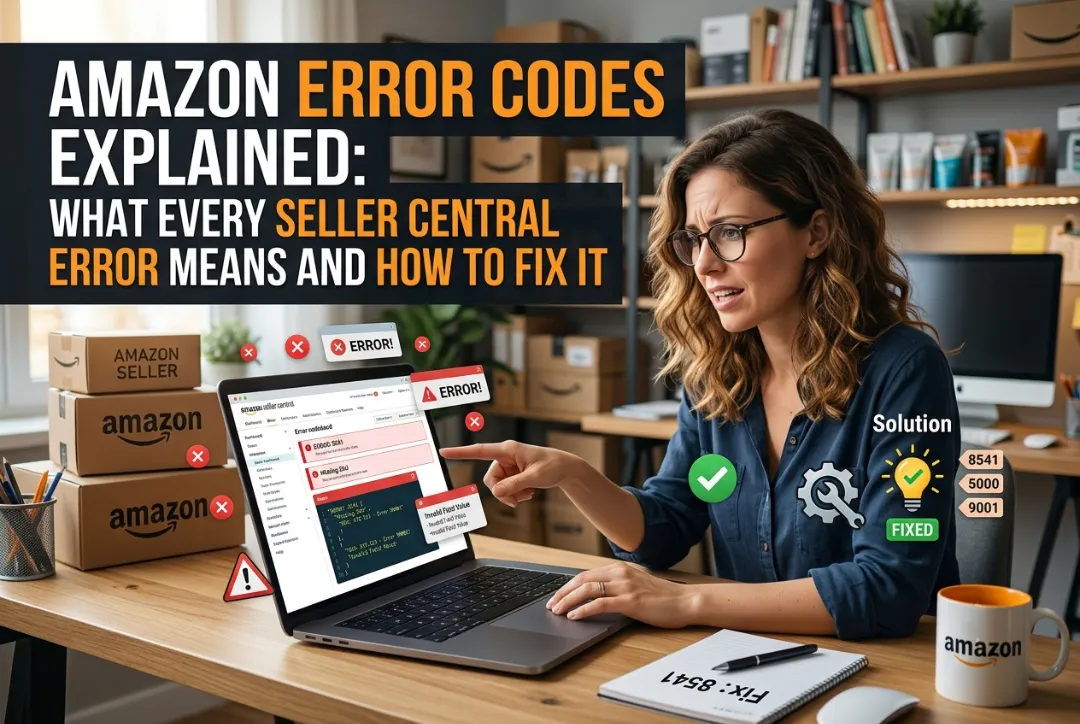

It’s late. The product photos are done, the copy is written, the stock is on its way to the warehouse. You upload the file, refresh the processing report, and there it is, a number where your listing should be: Error 8541. Or 5461. Or 90057.
No explanation you can act on. Just a code. Meanwhile your launch window is closing, your ad budget is waiting, and the help page Amazon points you to reads like it was written for engineers.
Here is the good news: every Amazon error code is a safeguard, not a verdict. Amazon’s own help pages explain that errors appear when a submission does not comply with the Product Detail Page Rules, and every one of them has a cause you can find and a fix you can apply.
This guide decodes 91 Amazon error codes across brand approval, product matching, variations, flat files, pricing, images and compliance. Each code gets a plain-English explanation and a step-by-step fix. Use the quick-reference table to jump straight to your code, or read on to understand the system behind the numbers so you can fix errors you have never seen before.
| The 30-second version An Amazon error code is a safeguard that blocks a submission breaking Amazon’s Product Detail Page Rules. Read the full message and the batch ID, not just the number. The details tell you where to look. Approval errors (5461, 5665, 8040, 100146) are solved with permissions and documents. Data errors (90057, 90117, 99006) are solved in your template. Matching errors (8541, 8560, 8572) almost always trace back to product identifiers. GS1-issued barcodes prevent most of them. Fix one SKU first, then upload in bulk. Never resubmit an unchanged file. If an error repeats, escalate with the code, batch ID, screenshots and documents in a single Seller Support case. |
A note on scope: Amazon has hundreds of error codes, and it publishes the full explanations only inside Seller Central help. This guide covers the codes sellers meet most often that are publicly documented, and it shows you how to work out any code that is not listed. Amazon changes these rules regularly, so always compare our steps with the live message in your own account.
What Are Amazon Error Codes?
Amazon error codes are numeric messages that appear in your processing report and listing issue screens when a product submission fails Amazon’s checks. They are the platform’s way of stopping wrong, incomplete or non-compliant information from reaching the product detail page that customers see.
Think of them as a quality gate. Every upload, every API call and every manual edit passes through hundreds of automated rules. When one rule fails, the system returns the number attached to that rule, plus a message with the specific detail: the attribute, the ASIN, or the value it rejected.
Why Amazon Shows Error Codes
According to Amazon’s own help documentation, errors result when you submit a product that does not comply with the Product Detail Page Rules. The causes fall into a few patterns:
- Using an incorrect template for the product type
- Not adding mandatory or required attributes
- Adding attributes that do not match the valid values
- Adding attributes that contradict other attributes or related attributes
- Entering text that exceeds a character limit
Amazon’s example is simple: if you submit a product with a description over the character limit, the processing report shows an error and the product is not added to the catalogue. Nothing is wrong with the product. The data simply broke a rule.
Error vs Warning: What Is the Difference?
Errors stop a submission or listing from being created or updated. Warnings flag a concern without necessarily blocking the listing. Amazon documents some warnings separately, such as warning code 18367, where Amazon modified the product type. Treat warnings as early notice: they are often the first sign of an error you will see later.
Where to Find Your Amazon Error Code in Seller Central
Before you can fix an error you need the full text of the message. There are three places to look, and the first is the one most sellers skip.
The Processing Report (Check Upload Status)
Amazon encourages you to review the processing report after every upload. For inventory files, the report is available under Check Upload Status. It lists every row that failed, the error code, the attribute involved and the batch ID. Download it and keep it, because it is the evidence you will need if you have to contact Seller Support.
Manage All Inventory
In Manage All Inventory, listings with problems show status and issue messages. Open the affected SKU to see which attributes need fixing. This is the quickest route for single-listing errors made through the manual Add a Product tool. For a full tour of the menus, see our guide to Amazon Seller Central explained.
Get Help: Trouble Adding a Product
If you need Amazon’s help, go to Help, choose Get Help, then Trouble adding a product, then Received an error code or message. Select your exact error code and complete the form. For some errors, such as 8040, this form is the official resolution path.
How Amazon Error Code Series Work: A Cheat Sheet
Amazon groups error codes into series, and the leading digits tell you which part of the system rejected your data. Amazon does not publish an official taxonomy, but the codes documented in this guide follow clear patterns. Learn them and you can make an educated diagnosis of a code you have never met.
| Series | What it usually relates to | Examples in this guide |
| 3000 / 4000 | Product eligibility and fulfilment authorisation | 3015, 4000, 4400 |
| 5000 | Brand approval, new ASIN creation, file format | 5000, 5004, 5461, 5665, 5886, 5887, 5995 |
| 6000 | Listed by Amazon in Seller Central help; definitions only appear inside your account | Check your own error message |
| 8000 | Product matching, variations, category approval, attribute logic | 8008, 8016, 8026, 8032, 8040, 8056, 8057, 8105, 8115, 8541, 8542, 8556, 8560, 8566, 8567, 8572, 8573, 8684, 8804 |
| 12000 – 14000 | Fulfilment channel, handling time, inventory, currency | 12998, 13004, 13013, 13043, 14012 |
| 15000 | Automate Pricing rules and files | 15001 – 15025 |
| 17000 | Minimum and maximum price rules | 17001, 17002, 17003, 17004 |
| 18000 | Attribute values, variation themes, product safety | 18002, 18014 |
| 20000 / 300000 | Image and file URL access | 20004, 300404 |
| 90000 / 99000 | Flat-file field validation: values, limits, required columns | 90041, 90057, 90113, 90114, 90117, 90202, 99006, 99038 |
| 100000 | Newer compliance, price-sanity, image-quality and title checks | 100007, 100019, 100035, 100037, 100146, 100151, 100158, 100160, 100167, 100227, 100229, 100232, 100235, 100236, 100238, 100239, 100240, 100325, 100332, 100334 |
Use the table as a map, not a rulebook. A code’s real meaning always lives in the full message attached to it.
The 7-Step Framework for Fixing Any Amazon Error Code
Every fix in this guide follows the same logic. If you memorise these seven steps, you can solve errors that no guide covers.
Step 1: Copy the full message and the batch ID
Never work from the number alone. The message names the attribute, the ASIN or the value that failed, and the batch ID lets Seller Support find your upload.
Step 2: Place the error in its series
Use the cheat sheet above to decide whether this is an approval problem, a matching problem, a data problem or a compliance problem. That tells you whether the fix lives in your file, your account or a document.
Step 3: Find the exact field or ASIN involved
Look at the row and column the report points to. If the error names an ASIN, open its live product page and keep it beside your file.
Step 4: Check the Data Definitions tab or the live detail page
For data errors, the Data Definitions tab of your category template shows accepted values, limits and required fields. For matching errors, the live ASIN is your source of truth.
Step 5: Fix it at the source in the original template
Edit the master file, not a copy of a copy. Paste accepted values rather than typing them, and keep unit-of-measure columns paired with their numbers.
Step 6: Test with one SKU before you upload the batch
Upload a single corrected row and check the report. One clean result proves the fix. Resubmitting 5,000 rows with the same mistake wastes hours.
Step 7: Escalate with evidence if it still fails
Open one Seller Support case with the error code, batch ID, screenshots of the report and any documents (invoices, GS1 certificate, letter of authorisation). A complete case gets resolved faster than three incomplete ones.
Amazon Error Codes at a Glance: Quick-Reference Table
Find your code, read the one-line meaning and the fastest fix, then jump to the full step-by-step section below.
| Error code | What it means | Fastest fix |
| 5461 | You are not authorised to create a new ASIN under this brand. | Add your offer to the existing ASIN, or apply for catalog authorisation / Brand Registry. |
| 5665 | Brand name is unregistered or not yet approved under Amazon’s Brand Name Policy. | Enrol in Brand Registry, or prove your brand with product and packaging photos via a Seller Support case. |
| 5995 | The brand in your submission differs from the brand on the existing ASIN. | Match the brand exactly to the detail page, or correct the ASIN through Brand Registry. |
| 5886 / 5887 / 100334 | You tried to edit, add offers to, or copy a generic product page that belongs to another seller. | Create your own new product with your own identifiers instead of matching the generic ASIN. |
| 8040 | You can’t create new variation relationships for this brand. | Add offers to existing ASINs, then request brand approval through Get Help or a Seller Support case. |
| 8026 | Your account is not authorised for the category or sub-category you submitted to. | Apply for category approval from Add a Product, or move the product to an open category. |
| 8556 | The product falls under a category Amazon restricts. | Check the restricted-products policy; apply for approval or remove the listing. |
| 90202 | Only sellers approved by the brand or Amazon can list this item. | Request approval from the brand owner or through Seller Central. |
| 100146 | Amazon requires permission before you can sell this brand. | Apply under “Listing Limitations Apply” in Add Products, with invoices or an authorisation letter. |
| 100332 | Brand, category or account-level controls restrict the listing. | Check brand approval, category rules and account health, then contact Seller Support. |
| 3015 | Product flagged as restricted and at risk of removal. | Check eligibility rules, then remove the listing or appeal with documentation. |
| 8541 / 8542 | Identifier exists in the catalogue, but your title, brand, colour or size doesn’t match. | Compare your attributes to the existing ASIN and align them, or prove brand ownership. |
| 8560 | A required identifier or attribute (product ID, brand, product type) is missing or invalid. | Read the sub-message, supply the missing field, and double-check the product ID character by character. |
| 8566 | The SKU doesn’t match any existing ASIN, and your data can’t create one. | Add UPC/EAN, brand, manufacturer part number, dimensions and all required attributes. |
| 8567 | No ASIN matched, and one or more submitted values are invalid. | Correct the invalid values named in the message, then resubmit with a valid identifier. |
| 8572 | Amazon does not associate your UPC with your brand. | Use GS1-issued UPCs, then open a case with your GS1 certificate and letter of authorisation. |
| 8573 | Amazon found likely catalogue matches for the product you’re trying to create. | Search the catalogue first; add your offer to the match, or contact Support if truly unique. |
| 8684 | A SKU is associated with multiple ASINs or GCIDs. | Give every item its own unique SKU and remove duplicate rows. |
| 8056 | The ASIN in your file is wrong or doesn’t match your data. | Verify the ASIN, or switch to UPC/EAN and remove merchant_suggested_asin. |
| 8016 | Variation theme attributes are missing or inconsistent across parent and children. | Use the same variation theme everywhere and fill every theme attribute on every child. |
| 8032 | A child is already assigned to a different parent SKU. | Remove the old parent-child relationship, then assign the new one. |
| 8008 | Amazon can’t find the parent SKU a child record refers to. | Create the parent first, and make the parent SKU spelling match exactly. |
| 8804 | Spelling, capitalisation or punctuation differs between variations of the same attribute. | Standardise the attribute value across every child or remove the outlier SKU. |
| 18002 | The value (such as a deprecated variation theme) isn’t on Amazon’s accepted list. | Replace it with a currently accepted value from the category’s data definitions. |
| 5000 | Feed is malformed, has invalid values or contains duplicated SKUs. | Validate the feed structure and make every SKU unique before sending. |
| 5004 | One or more required fields are empty. | Complete every required field and resubmit. |
| 4000 | The same processing error keeps recurring on resubmission. | Fix the specific field flagged in the processing report, then resubmit. |
| 8057 | ConditionType cannot be modified for a SKU that has active inventory. | Set quantity to zero, change the condition, resubmit, then restore stock. |
| 8105 | The unit count type doesn’t align with the item form. | Correct the mismatched pair so the form and unit type agree. |
| 8115 | ConditionType isn’t one of Amazon’s accepted values. | Use an accepted value from the template, such as New or Refurbished. |
| 90041 | Required product fields were left empty. | Fill every highlighted required field. |
| 90057 | A field was filled with a value outside its accepted list. | Open the Data Definitions tab and use an exact accepted value. |
| 90113 | Price is above Amazon’s ceiling for the product or category. | Check for a misplaced decimal or wrong currency, then correct the price. |
| 90114 | A number (price, weight, quantity) is under the minimum. | Enter a value at or above the minimum and add any required unit of measure. |
| 90117 | A field is longer than its maximum length. | Check the limit on the Data Definitions tab and shorten the text. |
| 99006 | A required column is empty, or a dependent column is missing a pair. | Fill the column named in the error, along with any dependent unit column. |
| 99038 | Broken or unclosed HTML in the title, description or bullet points. | Close or remove all HTML tags in text fields. |
| 100035 | item_name lacks values required for the product type. | Add the missing details to the title, such as compatible models or piece count. |
| 13004 | Handling time value is outside the accepted range. | Enter a valid handling time within Amazon’s allowed range. |
| 13013 | Inventory data was not processed because the SKU isn’t in the catalogue. | Verify the SKU, create the product record first, then send inventory. |
| 13043 | Standard or sale price was submitted as zero. | Set every price to at least 0.01. |
| 14012 | The currency code is not recognised. | Use a valid ISO code such as USD, GBP or EUR that matches the marketplace. |
| 12998 | The channel code doesn’t match the type of inventory submitted. | Match the fulfilment channel to the inventory type, or contact Support. |
| 17001 / 17003 | Minimum price exceeds the selling price. | Lower the minimum price to equal or below the selling price. |
| 17002 / 17004 | Maximum price is below the selling price. | Raise the maximum price to equal or above the selling price. |
| 100019 | The price looks too high compared with similar products. | Review the price against the market and confirm or correct it. |
| 100037 | The price looks too low compared with similar products. | Review the price against the market, then confirm or update it. |
| 4400 | An MFN authorisation issue could make the offer unbuyable. | If the offer is live through FBA, no action; otherwise contact Seller Support. |
| 20004 | Amazon can’t download the image from your URL. | Check the URL loads in a browser and use a publicly accessible link. |
| 300404 | The file URL returns a 404 not-found response. | Fix the broken link or re-host the file at a working URL. |
| 100236 | The MAIN image has blurred or pixelated areas. | Upload a sharp, high-resolution replacement. |
| 100238 | A secondary image (such as PT06) breaks Amazon’s image requirements. | Upload a compliant replacement for the named image slot. |
| 100232 | The named image slot was flagged as containing explicit content or a child model. | Replace the image with one that follows Amazon’s image policy. |
| 100235 | The named image slot has text or graphics that aren’t allowed. | Remove the text or graphics and upload a compliant image. |
| 100239 | Amazon thinks the title and the main image describe different products. | Make the title and main image describe exactly the same item. |
| 100007 | Electronics sold in Germany need a WEEE registration number. | Register under German EPR and add the WEEE number to the listing. |
| 100167 | You must register the brand to list in Germany; a WEEE number may follow. | Register the brand, get it approved, then supply the WEEE number if asked. |
| 100240 | Amazon needs an EU Responsible Person for the product. | Add the EU Responsible Person’s name and contact details to the listing. |
| 100229 | Required energy-efficiency information or label is missing. | Add the energy label and efficiency details your region requires. |
| 100227 | A copyright claim has been made against the listing. | Read the claim, then provide proof of rights or remove the listing. |
| 100151 | The product has been identified as recalled. | Confirm the recall, follow Amazon’s instructions and submit corrective evidence. |
| 100158 / 100160 / 18014 | The product was flagged for a potential safety concern. | Review safety rules, supply certificates and documents, and resubmit. |
| 100325 | Cross-listing failed, for example NL to BE. | Complete all required attributes and fix any suppression on the source listing. |
| 15001 – 15025 | Automate Pricing rule and file errors (21 codes) | See the Automate Pricing section below for each code. |
Brand, Approval and Category Restriction Errors (5461, 5665, 8040 and More)
These are the errors that stop sellers cold, because no amount of spreadsheet editing fixes them. Amazon is not complaining about your data. It is telling you that you lack permission. Almost every error in this group is solved by one of three moves: prove you own the brand, prove you are authorised to sell it, or add your offer to an existing listing instead of creating a new one.
Error 5461: New ASIN creation is blocked for this brand
Quick answer: You are not authorised to create a new ASIN under this brand. Fastest fix: Add your offer to the existing ASIN, or apply for catalog authorisation / Brand Registry.
What error 5461 means
Amazon is refusing to create a brand-new product page (ASIN) for a brand you are not approved to list. It most often appears when the brand is enrolled in Brand Registry or is otherwise gated, whether you are creating a new listing or editing an existing one. It is one of the most common errors discussed on the Seller Central forums.
How to fix error 5461 step by step
- Search the Amazon catalog by UPC, EAN or title. If an ASIN for your product already exists, add your offer to it instead of creating a new page.
- If you own the brand, confirm it is enrolled in Amazon Brand Registry and that your seller account is linked to it as the brand owner or an authorised user.
- If you are an authorised reseller (or have a legitimate reason to create new ASINs), use the catalog-authorisation application link shown in the error message and submit proof such as supplier invoices or a letter of authorisation from the brand.
- Wait for Amazon’s decision before re-uploading. Sellers commonly report a couple of days, but timing varies.
- If the application is rejected, open a Seller Support case, quote error 5461, include the batch ID from your upload, and attach your documents.
Pro tip: 5461 and 8040 often show up together. 5461 blocks standalone new ASINs; 8040 blocks new variation relationships. Both point to the same missing brand permission, so fixing one usually fixes both.
Error 5665: Brand name needs Amazon’s approval before you can list
Quick answer: Brand name is unregistered or not yet approved under Amazon’s Brand Name Policy. Fastest fix: Enrol in Brand Registry, or prove your brand with product and packaging photos via a Seller Support case.
What error 5665 means
Amazon is telling you the brand name on your submission has not been approved. The message asks you to register the brand with Amazon before listing ASINs under it and to confirm you comply with the Brand Name Policy. Amazon also runs a Seller University course called “Resolve error 5665”, which shows how common this one is.
How to fix error 5665 step by step
- Check the brand name in your file against the product packaging. It must match exactly, including spacing, punctuation and capitalisation.
- If the brand is a registered trademark, enrol it in Amazon Brand Registry. Once the brand is registered and linked to your account, the error normally clears.
- If the brand is not trademarked and you believe you comply with the Brand Name Policy, open a Seller Support case and quote error code 5665.
- Attach clear photos of the product and its packaging showing the brand name. Name the photo files clearly so the reviewer can follow them.
- If asked for barcode evidence, supply proof that your UPC comes from GS1 (a GS1 certificate or a GS1 Data Hub screenshot).
- Keep the case open, reply to every request for more information, and re-upload the file only after Amazon confirms approval.
Pro tip: Many 5665 cases drag on because the seller sends one blurry packaging photo. Send the product, the retail packaging, and any label that carries the brand name, all in focus, in a single reply.
Error 5995: Brand name mismatch
Quick answer: The brand in your submission differs from the brand on the existing ASIN. Fastest fix: Match the brand exactly to the detail page, or correct the ASIN through Brand Registry.
What error 5995 means
The brand you submitted does not match the brand already stored on the ASIN you are trying to update. Even tiny differences, such as “Acme Home” versus “ACME Home”, can trigger it.
How to fix error 5995 step by step
- Open the live product detail page and note exactly how the brand appears.
- Compare it with the brand column or field in your upload file, character by character.
- Edit your file so the brand matches the detail page, then re-upload.
- If the detail page itself carries the wrong brand and you own the brand, report the correction through Brand Registry or Seller Support with proof of ownership.
- If the brand is already correct and the error persists, open a case quoting 5995 and include a screenshot of both the detail page and the upload report.
Pro tip: When you manage a large catalogue, keep a single master list of approved brand spellings so every flat file, every team member and every tool uses the same string.
Errors 5886, 5887 and 100334: You can’t change another seller’s generic product page
Quick answer: You tried to edit, add offers to, or copy a generic product page that belongs to another seller. Fastest fix: Create your own new product with your own identifiers instead of matching the generic ASIN.
What errors 5886, 5887, 100334 mean
Amazon does not let one seller change a product detail page created for another seller’s generic product, add offers to it, or copy it to another store. Error 100334 carries the same message and references 5886 inside its text, and 5887 is the sibling code. The product must be created as a new, separate listing.
How to fix errors 5886, 5887, 100334 step by step
- Stop trying to edit or match the generic ASIN. Repeated attempts will not change the outcome.
- Use the Add a Product tool to create a brand-new product listing for your own item.
- Supply your own product identifier (a GS1-issued UPC or EAN), or a valid GTIN exemption where one applies.
- Give the listing your own title, images, bullets and description so it is clearly a distinct product.
- If you believe the generic ASIN is actually your product, contact Seller Support with proof of ownership and quote the error code.
Pro tip: Listings created without a brand and without a GS1 barcode are the ones that end up as “generic” pages other sellers can collide with. A proper brand and GS1 barcode protect you from this entire family of errors.
Error 8040: “Match only variation” brand restriction
Quick answer: You can’t create new variation relationships for this brand. Fastest fix: Add offers to existing ASINs, then request brand approval through Get Help or a Seller Support case.
What error 8040 means
Amazon’s standard message says you may not create new variation relationships for this brand, but you are free to add offers to any existing ASIN for it. Most of the time it means you are not the brand owner or an authorised reseller. Amazon has also acknowledged a technical issue that wrongly showed this error to genuine brand owners and authorised resellers, which is why a dedicated resolution form now exists.
How to fix error 8040 step by step
- Read the full error text and confirm the brand it names. If you are only reselling, you can still add your offer to existing ASINs.
- Test your permissions: try creating a standalone listing for the same brand. If you get error 5461, you have lost catalog permission for the brand and will see an authorisation link.
- If you are the brand owner or an authorised reseller, open Seller Central, select Help, choose Get Help, then Trouble adding a product, then Received an error code or message.
- Select “Error 8040 – Match only variation error” and complete the form: ASIN, Product ID, Product Name, Brand Name, Manufacturer, Category and Product Description.
- Follow the catalog-authorisation steps if requested, and attach invoices or a letter of authorisation.
- Once approved, re-upload your variation file.
Pro tip: Sellers have reported being blocked on a brand they had listed for years. If an old variation family suddenly breaks apart and 8040 appears, check your brand permissions first, before rebuilding any files.
Error 8026: You are not approved to sell in this category
Quick answer: Your account is not authorised for the category or sub-category you submitted to. Fastest fix: Apply for category approval from Add a Product, or move the product to an open category.
What error 8026 means
You submitted product data to a category that needs approval, and your account does not have it yet. Some categories are gated and require account validation before any product can be listed.
How to fix error 8026 step by step
- Confirm which category the product sits in and whether Amazon lists it as requiring approval.
- Start the approval request from the Add a Product page for that category.
- Prepare the documents Amazon typically asks for in gated categories, such as supplier invoices, business details and product compliance information.
- Submit the application and wait for the decision before re-uploading products in that category.
- If the product was placed in the wrong category by mistake, correct the category in your file instead of applying.
Pro tip: Before you source stock for any restricted category, run an approval check for the exact product. Buying inventory first and applying later is the most expensive way to find out you are gated.
Error 8556: Product is in a restricted category
Quick answer: The product falls under a category Amazon restricts. Fastest fix: Check the restricted-products policy; apply for approval or remove the listing.
What error 8556 means
Amazon has identified the product as belonging to a restricted category, so it cannot be freely listed. Not every product can be sold on Amazon, and some can only be sold by approved sellers.
How to fix error 8556 step by step
- Look up the product category in Amazon’s restricted products policy to see whether it is prohibited or merely gated.
- If it is gated, apply for approval and supply the documentation requested.
- If it is prohibited, remove the product from your catalogue and do not resubmit it.
- If you believe the product was flagged by mistake, open a Seller Support case quoting 8556 with product images, packaging and specifications.
Pro tip: Product titles and keywords can trigger restricted-category flags even when the product itself is fine. Review the wording before assuming the product is the problem.
Error 90202: Listing restricted to approved sellers
Quick answer: Only sellers approved by the brand or Amazon can list this item. Fastest fix: Request approval from the brand owner or through Seller Central.
What error 90202 means
The product (usually because of its brand) can only be listed by approved sellers. Your account is not on the approved list yet.
How to fix error 90202 step by step
- Identify the brand and check whether it is a Brand Registry brand with restricted selling.
- Ask the brand owner for authorisation and obtain a letter of authorisation.
- Submit the approval request in Seller Central with your invoices and the letter attached.
- If approval is not available, sell a different product rather than risking an inauthentic-item complaint.
Pro tip: Never work around this error by listing the product under a different brand name. That is how sellers end up with an inauthentic-item suspension, which is far harder to fix than a listing error.
Error 100146: You need approval to list this brand
Quick answer: Amazon requires permission before you can sell this brand. Fastest fix: Apply under “Listing Limitations Apply” in Add Products, with invoices or an authorisation letter.
What error 100146 means
Amazon requires permission before you sell products from this brand. The control exists to keep out counterfeits and to make sure only authorised sellers list the brand’s products.
How to fix error 100146 step by step
- Sign in to Seller Central and open the Catalog menu.
- Choose Add Products and search for the brand or product.
- Click “Listing Limitations Apply” next to the product and follow the instructions to request approval.
- Upload invoices, a letter of authorisation from the brand or other proof you are an authorised seller.
- Wait for approval, then resubmit your listing.
Pro tip: Invoices should show the supplier’s full name, address and the exact products and quantities. Cropped or redacted invoices are the most common reason approvals are rejected.
Error 100332: This product has other listing limitations
Quick answer: Brand, category or account-level controls restrict the listing. Fastest fix: Check brand approval, category rules and account health, then contact Seller Support.
What error 100332 means
A catch-all restriction. Amazon is applying a control to the product that is not covered by a more specific code. It may be brand-related, category-related or tied to your seller performance.
How to fix error 100332 step by step
- Review the policies for the category the product belongs to.
- Confirm you hold any brand approvals the product needs.
- Check your Account Health dashboard for performance issues that could limit listing.
- Open a Seller Support case quoting 100332 and ask which specific limitation applies.
Pro tip: Ask Support for the exact limitation in writing. A vague answer is not a resolution, and the written reply is the evidence you need if you have to escalate.
Error 3015: Product is restricted or no longer eligible
Quick answer: Product flagged as restricted and at risk of removal. Fastest fix: Check eligibility rules, then remove the listing or appeal with documentation.
What error 3015 means
Reference guides describe 3015 as a restriction flag on the product, meaning the item is not eligible under current rules and may be removed. Amazon lists 3015 as its own entry in the error-code help section.
How to fix error 3015 step by step
- Identify why the product is restricted by checking its category and the policy that applies.
- If the product is eligible with approval, apply and supply compliance documents.
- If you disagree with the decision, appeal through Seller Support with supporting documentation.
- If the product is ineligible, remove it from your catalogue to protect your account health.
Pro tip: Keep certificates, test reports and supplier paperwork in one shared folder per product. An appeal with documents attached is resolved far faster than one without.
Product Matching and Identifier Errors (8541, 8560, 8566, 8572 and More)
Before Amazon creates a listing it tries to match your submission to a product already in the catalogue, using identifiers such as UPC, EAN or ISBN plus supporting attributes. When the identifier points to one product and your data describes another, or when the data is too thin to build a new page, you get a matching error. These are the 8000-series errors that eat the most seller hours.
Errors 8541 and 8542: Your data doesn’t match the product Amazon found
Quick answer: Identifier exists in the catalogue, but your title, brand, colour or size doesn’t match. Fastest fix: Compare your attributes to the existing ASIN and align them, or prove brand ownership.
What errors 8541, 8542 mean
These are classic matching errors. The UPC or EAN you submitted already belongs to an ASIN, but other details in your file (title, brand, colour, size and so on) do not agree with the catalogue data. Amazon recognises the product but not your description of it. A frequent hidden cause is a non-GS1 or recycled UPC that has been attached to a different brand before.
How to fix errors 8541, 8542 step by step
- Search the catalogue for your UPC or EAN and open the ASIN it returns.
- Compare every attribute side by side with your file: brand, title, colour, size, manufacturer and product type.
- If your product really is the same item, update your file to match the catalogue values and re-upload.
- If the catalogue data is wrong and you own the brand, correct it through Brand Registry or a Seller Support case with proof.
- If your product is genuinely different, check that your UPC is issued by GS1. Reseller or recycled UPCs often collide with other brands’ products.
- If the code belongs to you, open a case with your GS1 certificate so Amazon can unlink it from the wrong product.
Pro tip: Fixing a barcode problem at the source is cleaner than patching listings one by one. Our guide to UPC to GS1 barcodes on Amazon explains the full process, and we can handle updating GS1 barcode on old listings for you.
Error 8560: Mandatory information is missing
Quick answer: A required identifier or attribute (product ID, brand, product type) is missing or invalid. Fastest fix: Read the sub-message, supply the missing field, and double-check the product ID character by character.
What error 8560 means
At least one piece of mandatory data is missing, so Amazon cannot match or create the product. Typical missing items are the product identifier (EAN or UPC), the brand and the product type. The error message usually names the field, for example “Missing Attributes product_type”. A single wrong character in a product code can also trigger it.
How to fix error 8560 step by step
- Read the full error line. It tells you which attribute is missing.
- Check the product identifier carefully. Even one incorrect digit can cause an 8560.
- Fill in the brand and product type for the category you are using.
- If you are a distributor, obtain the EAN or UPC from your supplier. If you make the product, buy GS1 codes.
- Make sure you are using the correct category template, then re-upload.
Pro tip: Use a spreadsheet formula to validate the check digit on every GTIN before upload. It takes minutes to set up and removes a whole class of 8560 errors.
Error 8566: Not enough data to create a new ASIN
Quick answer: The SKU doesn’t match any existing ASIN, and your data can’t create one. Fastest fix: Add UPC/EAN, brand, manufacturer part number, dimensions and all required attributes.
What error 8566 means
Your SKU does not match any ASIN in the catalogue, and the product data you supplied is not sufficient for Amazon to create a new one. In practice the file is missing too many attributes for Amazon to build a trustworthy product page.
How to fix error 8566 step by step
- Confirm you are using the right category template for the product type.
- Add a valid product identifier (UPC, EAN or ISBN).
- Add the brand, manufacturer part number and the physical dimensions.
- Complete every required attribute in the template, not just the minimum columns.
- Re-upload and check the processing report for any new errors.
Pro tip: A new-ASIN file with a thin title and a missing brand will fail even when everything else is perfect. Build the content first and upload last.
Error 8567: SKU doesn’t map to an ASIN and contains invalid values
Quick answer: No ASIN matched, and one or more submitted values are invalid. Fastest fix: Correct the invalid values named in the message, then resubmit with a valid identifier.
What error 8567 means
Similar to 8560 and 8566, but with an extra twist. Amazon could not match the SKU to an ASIN and, at the same time, found values in your file that it considers invalid.
How to fix error 8567 step by step
- Read every line of the error message and list each invalid value it mentions.
- Validate the product identifier, including its length and check digit.
- Fix attribute values that fall outside the accepted list on the Data Definitions tab.
- Confirm all required attributes are present, then re-upload.
Pro tip: When several errors appear together, fix the identifier first. A bad identifier can cascade into other errors on the same row.
Error 8572: GTIN doesn’t match the brand on the ASIN
Quick answer: Amazon does not associate your UPC with your brand. Fastest fix: Use GS1-issued UPCs, then open a case with your GS1 certificate and letter of authorisation.
What error 8572 means
Amazon does not recognise the UPC as belonging to your brand. This is common with new private-label products using UPCs bought from third-party resellers instead of GS1, because the barcode is registered to another company in the GS1 database.
How to fix error 8572 step by step
- Confirm your UPC was issued directly by GS1, not by a reseller.
- Make sure the brand name registered in GS1 matches the brand on your listing.
- Open a Seller Support case asking to list the item with your UPC.
- Attach your GS1 certificate (from the GS1 Data Hub) and a letter of authorisation if you are not the registered company.
- Wait for Support to confirm, then re-upload.
Pro tip: If your catalogue was built on reseller barcodes, don’t wait for errors to appear one by one. A bulk UPC to GS1 barcodes on Amazon migration protects the whole range at once.
Error 8573: Potential duplicate of an existing product
Quick answer: Amazon found likely catalogue matches for the product you’re trying to create. Fastest fix: Search the catalogue first; add your offer to the match, or contact Support if truly unique.
What error 8573 means
While creating a new listing, Amazon found existing products that closely resemble yours. To stop duplicates it blocks creation until you confirm the product really is different.
How to fix error 8573 step by step
- Search the catalogue using your UPC, brand, key features and relevant keywords.
- If an identical product exists, add your offer to that ASIN.
- If you have searched thoroughly and your product has unique details, contact Seller Support and quote error 8573.
- Provide product photos and specifications that show what makes it different, and ask for guidance on creating a new ASIN.
Pro tip: Don’t resubmit the same file repeatedly hoping for a different result. Every identical rejection adds noise to your case history.
Error 8684: One SKU linked to more than one item
Quick answer: A SKU is associated with multiple ASINs or GCIDs. Fastest fix: Give every item its own unique SKU and remove duplicate rows.
What error 8684 means
More than one item is linked to the same SKU or ASIN, so Amazon cannot tell which product the row refers to. Integration tools describe it as a SKU associated with more than one GCID (global catalogue item).
How to fix error 8684 step by step
- Export your inventory and search for SKUs that appear on more than one row.
- Create a unique SKU for every individual item.
- Check that variations, bundles and multipacks have their own SKUs.
- Remove duplicate rows from your file and re-upload.
Pro tip: Our ASIN vs SKU guide shows a SKU naming system that makes duplicate-SKU errors almost impossible.
Error 8056: Incorrect ASIN provided
Quick answer: The ASIN in your file is wrong or doesn’t match your data. Fastest fix: Verify the ASIN, or switch to UPC/EAN and remove merchant_suggested_asin.
What error 8056 means
The ASIN you supplied is not correct, or your data does not match the key attributes of that ASIN.
How to fix error 8056 step by step
- Check the ASIN against the live product page.
- If you are not certain of the ASIN, use the UPC or EAN instead.
- Remove the merchant_suggested_asin value from the file.
- Confirm brand, product type and key attributes match the ASIN, then resubmit.
Pro tip: Copy ASINs directly from the product page URL. Typing them by hand is the number-one source of 8056 errors.
Variation (Parent-Child) Errors (8016, 8032, 8008, 8804 and 18002)
Variation families, where one parent holds colour, size or style children, are the most fragile structure in an Amazon catalogue. One inconsistent value can break the entire family. These five errors cover nearly every variation failure we see.
Error 8016: Not enough data to build the variation
Quick answer: Variation theme attributes are missing or inconsistent across parent and children. Fastest fix: Use the same variation theme everywhere and fill every theme attribute on every child.
What error 8016 means
You are creating a parent-child product, but the data supplied is not enough to build the variation. The two most common causes are using different variation themes on the parent and the children, and leaving the attributes required by the theme empty on the children. If the theme is SizeColor, every child must have both a size and a colour.
How to fix error 8016 step by step
- Choose one variation theme and use it on the parent and on every child in the family.
- Fill in every attribute the theme requires, such as size and colour, for each child.
- Check the theme is valid for the product type you selected.
- Make sure the parent row does not carry child-only values.
- Re-upload the whole family together.
Pro tip: Build variation files in a template where parent rows are colour-coded. Visual separation catches most 8016 mistakes before upload.
Error 8032: Invalid variation relationship
Quick answer: A child is already assigned to a different parent SKU. Fastest fix: Remove the old parent-child relationship, then assign the new one.
What error 8032 means
The child SKU you are trying to attach already belongs to another parent. Amazon will not allow a child to have two parents.
How to fix error 8032 step by step
- Find which parent the child is currently linked to.
- Remove the old relationship (by updating the child so it no longer points to that parent).
- Wait for the change to process.
- Submit the new parent-child relationship.
- Review the preview of your file before sending to confirm each child has exactly one parent.
Pro tip: When you merge two variation families, do it in two separate uploads: detach first, attach second. Trying to do both in one file is what causes most 8032 errors.
Error 8008: Parent SKU not recognised
Quick answer: Amazon can’t find the parent SKU a child record refers to. Fastest fix: Create the parent first, and make the parent SKU spelling match exactly.
What error 8008 means
A child record references a parent SKU that Amazon cannot recognise. Either the parent has not been created yet, or the SKU in the child’s parent column does not match the parent’s SKU exactly.
How to fix error 8008 step by step
- Confirm the parent SKU exists in your inventory.
- If it does not, create the parent listing first.
- Check spelling, capitalisation and trailing spaces in the parent SKU column.
- Place the parent row above the child rows in the same file.
- Re-upload and confirm the processing report is clean.
Pro tip: Trailing spaces are invisible and deadly. Run a TRIM formula on your SKU columns before every upload.
Error 8804: Inconsistent attribute across a variation family
Quick answer: Spelling, capitalisation or punctuation differs between variations of the same attribute. Fastest fix: Standardise the attribute value across every child or remove the outlier SKU.
What error 8804 means
You are updating a variation family, but one attribute that should be identical across all variations has inconsistent values. Examples are different spellings (“color” versus “colour”), different capitalisation (“RED” versus “Red”) or different punctuation (“size: S” versus “S”).
How to fix error 8804 step by step
- Export the whole family into one sheet.
- Sort by the attribute named in the error and look for subtle differences.
- Standardise spelling, capitalisation and punctuation across all rows.
- If one SKU is a genuine outlier that does not belong in the family, remove it from the family.
- Re-upload the full family.
Pro tip: Create a short style guide for attribute values (for example, always Title Case for colours). Consistency at the source beats cleanup later.
Error 18002: Invalid enumerated value for a variation attribute
Quick answer: The value (such as a deprecated variation theme) isn’t on Amazon’s accepted list. Fastest fix: Replace it with a currently accepted value from the category’s data definitions.
What error 18002 means
Amazon rejected an attribute value because it is not in the list of accepted (enumerated) values. A typical example is a deprecated_variation_theme that Amazon no longer supports for that product type.
How to fix error 18002 step by step
- Read the attribute name and the rejected value in the error message.
- Check the accepted values for that attribute in the category’s data definitions.
- Replace the rejected value with a current, accepted value.
- If the old variation theme is retired, move the family to a supported theme.
- Re-upload and confirm the family still groups correctly.
Pro tip: Amazon retires variation themes without much fanfare. If a file that worked last quarter suddenly fails with 18002, a retired theme is the first suspect.
| Variation errors in one line 8016 means incomplete theme data. 8032 means a child has two parents. 8008 means the parent cannot be found. 8804 means values are inconsistent. 18002 means the value is not on the accepted list. |
Flat-File and Attribute Errors (5000, 5004, 90057, 90117 and More)
These errors say your file is the problem: a wrong value, a missing column, an oversized field or malformed markup. The good news is that they are the easiest to fix, because the answer is almost always sitting in the Data Definitions tab of your category template. Amazon’s own help pages put it plainly: errors result when a submission does not comply with the Product Detail Page Rules, and its example is a description that runs past the character limit.
Error 5000: Malformed or invalid XML document
Quick answer: Feed is malformed, has invalid values or contains duplicated SKUs. Fastest fix: Validate the feed structure and make every SKU unique before sending.
What error 5000 means
The feed Amazon received is malformed or invalid. It may contain invalid values or duplicated SKUs in the same feed, since each product must have its own SKU. You will mostly see it when sending XML feeds through an integration tool or API.
How to fix error 5000 step by step
- Run the feed through an XML validator to catch structural errors.
- Search for duplicate SKUs within the same feed and remove or correct them.
- Look for unescaped special characters (such as &) in titles and descriptions.
- Preview the feed in your integration tool before sending it again.
- Resubmit and check the processing report.
Pro tip: If you only upload spreadsheets, 5000 usually means the file was saved in the wrong format or contains hidden rows. Re-save from the original Amazon template.
Error 5004: Required information is missing from the file
Quick answer: One or more required fields are empty. Fastest fix: Complete every required field and resubmit.
What error 5004 means
A required field is blank in one or more rows. Amazon cannot process the product without it.
How to fix error 5004 step by step
- Open the processing report and note which rows are flagged.
- Check the required columns in the template header and fill every one.
- Make sure dependent fields, such as a unit of measure for a dimension, are filled together.
- Save, re-upload and check the report.
Pro tip: Template headers mark required columns. Filter your sheet for blank cells in those columns before each upload.
Error 4000: A persistent file-processing error
Quick answer: The same processing error keeps recurring on resubmission. Fastest fix: Fix the specific field flagged in the processing report, then resubmit.
What error 4000 means
Reference guides describe 4000 as a persistent file-processing error, meaning the same problem comes back every time you resubmit the file. Amazon lists 4000 as its own entry in the error-code help section.
How to fix error 4000 step by step
- Download the processing report for the failed upload.
- Identify the exact row and field that keeps failing.
- Correct that value in the original Amazon template rather than a copy.
- Re-upload through Add Products via Upload.
- If it still fails, open a Seller Support case with the batch ID and the processing report attached.
Pro tip: Resubmitting the same file unchanged will never clear a persistent error. Change something every time.
Error 8057: Condition type can’t be changed while inventory is active
Quick answer: ConditionType cannot be modified for a SKU that has active inventory. Fastest fix: Set quantity to zero, change the condition, resubmit, then restore stock.
What error 8057 means
You tried to change the condition type (for example from New to Used) on a SKU that is currently live with inventory. Amazon blocks the change.
How to fix error 8057 step by step
- Set the SKU’s quantity to zero and let the update process.
- Update the ConditionType in your file.
- Resubmit the listing.
- Restore your inventory quantity once the new condition is live.
Pro tip: If the condition really changed, consider creating a new SKU instead. It keeps your sales history clean.
Error 8105: Item Form and Unit Count Type don’t match
Quick answer: The unit count type doesn’t align with the item form. Fastest fix: Correct the mismatched pair so the form and unit type agree.
What error 8105 means
Two related attributes contradict each other. An example is an Item Form of “powder” combined with a Unit Count Type of “Fl Oz”, because fluid ounces describe liquids.
How to fix error 8105 step by step
- Identify the Item Form and the Unit Count Type you submitted.
- Decide which is correct for the product.
- Update the other so the pair is logically consistent.
- Re-upload and check the report.
Pro tip: Amazon’s unit-count rules tie several fields together, including net content and number of items. Change them as a set, not one at a time.
Error 8115: Invalid ConditionType value
Quick answer: ConditionType isn’t one of Amazon’s accepted values. Fastest fix: Use an accepted value from the template, such as New or Refurbished.
What error 8115 means
The condition value you supplied is not on Amazon’s accepted list. Accepted values include options such as New, Refurbished and UsedLikeNew.
How to fix error 8115 step by step
- Open the Data Definitions tab and find the Condition Type field.
- Copy an accepted value exactly as written.
- Paste it into your file in place of the rejected value.
- Re-upload.
Pro tip: Typos like “new ” with a trailing space or “Brand New” are enough to trigger 8115. Paste values, don’t type them.
Error 90041: Product information is incomplete
Quick answer: Required product fields were left empty. Fastest fix: Fill every highlighted required field.
What error 90041 means
The listing is missing required product information. Required fields are often highlighted in the flat file, which makes this one quick to spot.
How to fix error 90041 step by step
- Open the processing report and find the rows flagged.
- Look at highlighted cells in your template.
- Fill each required cell with a valid value.
- Re-upload.
Pro tip: Required fields differ by category. Always download a fresh template for the exact product type before you start a new batch.
Error 90057: Value isn’t one of Amazon’s accepted options
Quick answer: A field was filled with a value outside its accepted list. Fastest fix: Open the Data Definitions tab and use an exact accepted value.
What error 90057 means
Like 8560, this arises from invalid entries in your feed. It occurs when a value does not align with the predefined options for the field. Imagine entering “Summer” in a seasons field when Amazon only accepts “Autumn-Winter” and “Spring-Summer”. Your input makes sense, but it must match exactly.
How to fix error 90057 step by step
- Download the category-specific inventory file from the Add Products via Upload section.
- Open the Data Definitions tab and find the field named in the error.
- Look in the Accepted Values column and select the correct option.
- Copy it exactly into your file, then re-upload.
Pro tip: Build drop-down lists from the Accepted Values column in your master sheet. People can’t mistype what they pick from a list.
Error 90113: Standard price exceeds the maximum allowed
Quick answer: Price is above Amazon’s ceiling for the product or category. Fastest fix: Check for a misplaced decimal or wrong currency, then correct the price.
What error 90113 means
The standard price you entered exceeds the maximum Amazon allows for the product.
How to fix error 90113 step by step
- Check the price in your file for an extra zero or misplaced decimal.
- Confirm the currency matches the marketplace.
- Correct the price and re-upload.
- If the price is genuinely correct, contact Seller Support quoting 90113 with proof of the retail price.
Pro tip: A price entered in the wrong currency unit (for example rupees entered in a US file) is a classic cause.
Error 90114: Numeric value below the minimum allowed
Quick answer: A number (price, weight, quantity) is under the minimum. Fastest fix: Enter a value at or above the minimum and add any required unit of measure.
What error 90114 means
A numeric field holds a value below Amazon’s minimum, for example a price or weight below 0.01. It can also appear when a weight is given without the unit of measure.
How to fix error 90114 step by step
- Find the numeric field named in the error.
- Enter a value at or above the minimum.
- If it is a weight or dimension, also fill in the matching unit of measure column (such as ShippingWeightUnitOfMeasure).
- Re-upload.
Pro tip: A zero in a numeric field can look harmless in a spreadsheet. Amazon treats it as a value below the minimum.
Error 90117: Attribute exceeds the character limit
Quick answer: A field is longer than its maximum length. Fastest fix: Check the limit on the Data Definitions tab and shorten the text.
What error 90117 means
The text in one of your fields is longer than the limit for that attribute. Each field has its own limit, and the template documents it.
How to fix error 90117 step by step
- Identify the field named in the error.
- Check the maximum length on the Data Definitions tab.
- Shorten the text while keeping your most important keywords near the start.
- Re-upload.
Pro tip: Use a character-count formula next to every text column in your master sheet so you see limit breaches before Amazon does. For titles, see our guide to the Amazon title limit.
Error 99006: A required column value is missing
Quick answer: A required column is empty, or a dependent column is missing a pair. Fastest fix: Fill the column named in the error, along with any dependent unit column.
What error 99006 means
A required column is empty. The error also shows when one column depends on another: dimensions, for example, need a unit of measure alongside the number.
How to fix error 99006 step by step
- Read the column name in the error.
- Fill the column for every affected row.
- Check for dependent columns, such as a unit of measure.
- Re-upload.
Pro tip: When one dimension needs a unit, they all do. Fill length, width, height and weight units together.
Error 99038: HTML tags are improperly used or unclosed
Quick answer: Broken or unclosed HTML in the title, description or bullet points. Fastest fix: Close or remove all HTML tags in text fields.
What error 99038 means
There are HTML tags in your Title, Description or Bullet Points that are used incorrectly or never closed.
How to fix error 99038 step by step
- Find the field named in the error.
- Remove HTML tags that Amazon does not allow in that field.
- For allowed tags, make sure each opening tag has a closing tag.
- Re-upload.
Pro tip: Text pasted from a website editor often carries hidden HTML. Paste into a plain-text editor first.
Error 100035: Title is missing important information
Quick answer: item_name lacks values required for the product type. Fastest fix: Add the missing details to the title, such as compatible models or piece count.
What error 100035 means
The item_name (title) attribute lacks information Amazon requires for this product type. In the documented example it was missing the compatible phone models and the number of pieces.
How to fix error 100035 step by step
- Read which values the error says to include.
- Rewrite the title to include each one.
- Keep within the title character limit.
- Re-upload.
Pro tip: This is what a modern listing looks like to Amazon’s systems: structured information first, persuasion second. Our Amazon listing optimization team writes titles that satisfy both.
Pricing, Inventory and Fulfilment Errors (13013, 13043, 17001, 100019 and More)
Pricing and inventory errors cost you money in real time. A price flagged as a potential error can pull your offer off the Buy Box, and a failed inventory feed can leave you showing stock you don’t have. These errors tend to be quick to fix, but only if you read the message instead of guessing.
Error 13004: Invalid fulfilment latency or lead-time-to-ship
Quick answer: Handling time value is outside the accepted range. Fastest fix: Enter a valid handling time within Amazon’s allowed range.
What error 13004 means
The fulfilment latency (also called lead time to ship) you entered is not valid. Fulfilment latency is the time between an order being placed and shipped. Amazon accepts only values within a defined range.
How to fix error 13004 step by step
- Find the handling-time column in your file.
- Check the allowed range using the help link in the error message.
- Enter a whole number within the range.
- Re-upload.
Pro tip: Don’t set a handling time you can’t keep. Late shipments hurt your account health far more than a slightly longer promise.
Error 13013: This SKU doesn’t exist in the Amazon catalogue
Quick answer: Inventory data was not processed because the SKU isn’t in the catalogue. Fastest fix: Verify the SKU, create the product record first, then send inventory.
What error 13013 means
The SKU you are updating or referencing does not exist in the catalogue, so your inventory data was not processed. Sellers hit this when they upload inventory or price for a SKU whose product record was never created, or when the SKU has a typo.
How to fix error 13013 step by step
- Check the SKU for typos, extra spaces and the wrong case.
- Confirm the product exists in your inventory. If it doesn’t, create the product listing first.
- Wait for the product to be accepted, then send the inventory or price update.
- If you manage inventory through a tool, resync the tool’s SKU list with Seller Central.
Pro tip: Product data, price and inventory are processed as separate feeds. If you send them together for a new SKU, the inventory part can arrive before the product exists.
Error 13043: Price of 0.00 is not accepted
Quick answer: Standard or sale price was submitted as zero. Fastest fix: Set every price to at least 0.01.
What error 13043 means
A price of 0.00 was submitted for the standard price or sale price. All prices must be 0.01 or higher.
How to fix error 13043 step by step
- Filter the price columns for zero or blank values.
- Replace each with a valid price.
- If you meant to end a sale, remove the sale price instead of setting it to zero.
- Re-upload.
Pro tip: Zero often appears when a formula fails. Check any price column built from formulas.
Error 14012: Invalid currency code
Quick answer: The currency code is not recognised. Fastest fix: Use a valid ISO code such as USD, GBP or EUR that matches the marketplace.
What error 14012 means
The currency code attached to the item is invalid. Every priced item needs a recognised currency code.
How to fix error 14012 step by step
- Check the currency column.
- Replace it with a valid code for the marketplace: USD for the US, GBP for the UK, EUR for most of the EU.
- Re-upload.
Pro tip: If you sell on several marketplaces, keep one file per marketplace so a UK currency never reaches a US upload.
Error 12998: Fulfilment channel doesn’t support the inventory type
Quick answer: The channel code doesn’t match the type of inventory submitted. Fastest fix: Match the fulfilment channel to the inventory type, or contact Support.
What error 12998 means
The fulfilment channel you used does not support the inventory type you are providing. In plain terms, the way you handle the stock (Amazon warehouses or your own) is not compatible with the inventory you are trying to manage.
How to fix error 12998 step by step
- Check whether the SKU is set up as FBA or merchant-fulfilled.
- Check the fulfilment channel column in your inventory file.
- Use the channel that matches the SKU’s fulfilment method.
- If unsure, contact Seller Support to confirm the right channel.
Pro tip: Converting a SKU between FBA and merchant-fulfilled needs its own process. Do not simply overwrite the channel code.
Errors 17001 and 17003: Minimum price is higher than your selling price
Quick answer: Minimum price exceeds the selling price. Fastest fix: Lower the minimum price to equal or below the selling price.
What errors 17001, 17003 mean
Your minimum price is set above the current selling price. The minimum price must be less than or equal to the selling price. These errors are commonly tied to automated repricing.
How to fix errors 17001, 17003 step by step
- Find the selling price and the minimum price for the SKU.
- Lower the minimum price to the selling price or below, or raise the selling price.
- Save and let it process.
Pro tip: Review minimum prices after every cost increase. A minimum below your break-even is dangerous; one above your selling price is an error.
Errors 17002 and 17004: Maximum price is lower than your selling price
Quick answer: Maximum price is below the selling price. Fastest fix: Raise the maximum price to equal or above the selling price.
What errors 17002, 17004 mean
Your maximum price is set below the selling price. The maximum must be greater than or equal to the selling price.
How to fix errors 17002, 17004 step by step
- Find the selling price and maximum price for the SKU.
- Raise the maximum price to the selling price or above, or lower the selling price.
- Save and let it process.
Pro tip: Leave a sensible gap above your current price so repricing rules have room to work.
Error 100019: Potential high pricing error
Quick answer: The price looks too high compared with similar products. Fastest fix: Review the price against the market and confirm or correct it.
What error 100019 means
Amazon’s system flagged your selling price as potentially too high. It is a precaution against pricing mistakes.
How to fix error 100019 step by step
- Compare your price with similar products in the market.
- Check for typing mistakes such as an extra zero.
- Correct the price if it is wrong, or confirm it if it is intended.
- Resubmit the listing.
Pro tip: Our free Amazon FBA Profitability Calculator helps you confirm a price still leaves a healthy margin after fees.
Error 100037: Potential low pricing error
Quick answer: The price looks too low compared with similar products. Fastest fix: Review the price against the market, then confirm or update it.
What error 100037 means
Amazon’s system flagged your selling price as potentially too low versus comparable products. It exists to prevent mistaken pricing that could hurt the marketplace.
How to fix error 100037 step by step
- Check your price for a missing digit or misplaced decimal.
- Compare with similar products.
- Confirm the price if it is intentional, or update it.
- Resubmit.
Pro tip: Deliberate deep discounts, such as launch promotions, are the most common cause. Plan them as promotions, not as price edits.
Error 4400: Merchant Fulfillment Network authorisation problem
Quick answer: An MFN authorisation issue could make the offer unbuyable. Fastest fix: If the offer is live through FBA, no action; otherwise contact Seller Support.
What error 4400 means
Reference guides describe 4400 as a Merchant Fulfillment Network (MFN) authorisation issue that can leave an offer unbuyable. Amazon lists 4400 as its own entry in the error-code help section.
How to fix error 4400 step by step
- Check whether the affected SKU is fulfilled by Amazon (FBA) and currently live and buyable.
- If it is FBA and live, the message can usually be disregarded.
- If it is merchant-fulfilled and unbuyable, open a Seller Support case quoting 4400.
- Confirm the offer is buyable after Support responds.
Pro tip: Check buyability from a customer’s view. Open the product page in a private browser window to see what shoppers see.
Image and Media Errors (20004, 100236, 100238, 300404 and More)
Images are where Amazon’s automated checks have become strictest. Systems now scan every upload for blur, prohibited text, wrong backgrounds and mismatches between the image and the title. The fix is nearly always the same: upload a clean replacement that meets the image standards.
Error 20004: Image URL can’t be read
Quick answer: Amazon can’t download the image from your URL. Fastest fix: Check the URL loads in a browser and use a publicly accessible link.
What error 20004 means
Amazon tried to fetch an image from the URL in your file and could not read it. Typical causes are broken links, server timeouts, blocked access or URLs that need a login.
How to fix error 20004 step by step
- Paste the image URL into a private browser window and confirm it loads without signing in.
- Make sure the link points directly to an image file (.jpg, .png), not to a web page.
- Host the images on a fast, reliable server that allows public access.
- Re-upload.
Pro tip: Don’t host images on a free file-sharing page. Many block automated downloads without telling you.
Error 300404: Amazon couldn’t access the file at the URL (HTTP 404)
Quick answer: The file URL returns a 404 not-found response. Fastest fix: Fix the broken link or re-host the file at a working URL.
What error 300404 means
Amazon could not reach the file at the URL you supplied and received an HTTP 404, meaning the file is not there. It is common when a file has been moved, renamed or deleted after the URL was added to a feed.
How to fix error 300404 step by step
- Open the URL in a browser to confirm the 404.
- Locate the file on your server or re-upload it.
- Update the URL in your feed.
- Resubmit.
Pro tip: Avoid renaming or moving image files that are already referenced by a live feed.
Error 100236: Main image is blurred or pixelated
Quick answer: The MAIN image has blurred or pixelated areas. Fastest fix: Upload a sharp, high-resolution replacement.
What error 100236 means
The main product image was identified as having blurred or pixelated areas, so it does not meet Amazon’s quality standards.
How to fix error 100236 step by step
- Find the original, uncompressed photo.
- Check that it is in focus and large enough.
- Export it at high quality without heavy compression.
- Upload it as the MAIN image.
Pro tip: Upscaled low-resolution images are the leading cause. Reshoot instead of enlarging.
Error 100238: An image violates Amazon’s image standards
Quick answer: A secondary image (such as PT06) breaks Amazon’s image requirements. Fastest fix: Upload a compliant replacement for the named image slot.
What error 100238 means
The image in the slot named in the error, for example PT06, does not meet Amazon’s image standards on quality, size, resolution or presentation.
How to fix error 100238 step by step
- Note the slot named in the error.
- Check the image against the standards listed in the error documentation: a professional photograph, product filling at least 85 percent of the frame, in focus, realistic colour, pure white background (RGB 255, 255, 255) for main images, and at least 1000 pixels on the longest side.
- Edit or reshoot the image.
- Upload the replacement to the same slot.
Pro tip: Secondary images have more flexibility than the main image, but obvious defects will still be flagged. For a full image refresh, see our Amazon listing design services.
Error 100232: An image was flagged for prohibited content
Quick answer: The named image slot was flagged as containing explicit content or a child model. Fastest fix: Replace the image with one that follows Amazon’s image policy.
What error 100232 means
The image in the slot named in the error was flagged because it was identified as containing sexually explicit content or a child model, which Amazon’s image requirements do not allow.
How to fix error 100232 step by step
- Identify the slot named in the error.
- Review Amazon’s image requirements for your category.
- Replace the image with a compliant one.
- If you believe the flag is a mistake, appeal through Seller Support with the original image attached.
Pro tip: Lifestyle shots featuring models, particularly in apparel and baby categories, are the ones most often caught by automated checks.
Error 100235: An image contains prohibited text or graphics
Quick answer: The named image slot has text or graphics that aren’t allowed. Fastest fix: Remove the text or graphics and upload a compliant image.
What error 100235 means
The image in the slot named in the error contains text or graphics that Amazon does not allow in that position.
How to fix error 100235 step by step
- Identify the slot named in the error.
- Remove watermarks, badges, promotional text and logos that are not permitted.
- Keep informational graphics for the slots and A+ Content areas where they are allowed.
- Upload the replacement.
Pro tip: Move your infographics to the later image slots and A+ Content, and keep the main image clean.
Error 100239: Title and main image don’t represent the same product
Quick answer: Amazon thinks the title and the main image describe different products. Fastest fix: Make the title and main image describe exactly the same item.
What error 100239 means
The title and the main image you provided for the SKU do not seem to represent the same product. Amazon asks you to provide a title and a main image that accurately describe the same item, or to delete the incorrect one.
How to fix error 100239 step by step
- Compare the title to the main image side by side.
- Correct whichever one is wrong.
- Check that colour, quantity and pack size match in both.
- If you are unsure, contact Selling Partner Support.
Pro tip: Multipacks are a common trigger. A title that says “Pack of 3” with a single-item photo can fail the check.
Compliance and Regional Errors (100007, 100167, 100240, 100227 and More)
Compliance errors are Amazon enforcing law, not preference. Most come from European and UK marketplaces, where producer-responsibility and product-safety rules apply, but sellers on every marketplace meet them when they expand. If you sell across borders, expect more of these each year.
Error 100007: German EPR (WEEE) registration number required
Quick answer: Electronics sold in Germany need a WEEE registration number. Fastest fix: Register under German EPR and add the WEEE number to the listing.
What error 100007 means
Electronic products sold in Germany must carry a registration number under the German Extended Producer Responsibility rules for Waste Electrical and Electronic Equipment (WEEE).
How to fix error 100007 step by step
- Register with the responsible German authority for electronic waste.
- Receive your WEEE registration number.
- Add the number to the product information in Seller Central.
- Resubmit the listing.
Pro tip: Registration can take time. Start before you ship stock to a German fulfilment centre, not after.
Error 100167: Brand registration required for Germany’s EPR rules
Quick answer: You must register the brand to list in Germany; a WEEE number may follow. Fastest fix: Register the brand, get it approved, then supply the WEEE number if asked.
What error 100167 means
To list this product on Amazon’s German marketplace you need to register your brand to comply with Extended Producer Responsibility requirements. Once approved, you may also have to submit a WEEE registration number.
How to fix error 100167 step by step
- Register your brand with Amazon.
- Wait for the brand application to be approved.
- Provide the WEEE registration number if requested.
- Resubmit the listing.
Pro tip: Enrolling in Amazon Brand Registry early removes a whole class of cross-border listing blocks.
Error 100240: EU Responsible Person information required
Quick answer: Amazon needs an EU Responsible Person for the product. Fastest fix: Add the EU Responsible Person’s name and contact details to the listing.
What error 100240 means
You must provide the details of an EU Responsible Person for the product, meaning the person or company designated to ensure compliance with EU product regulations.
How to fix error 100240 step by step
- Appoint or identify your EU Responsible Person.
- Collect their name, address and contact details.
- Enter them in the compliance section of the listing in Seller Central, or through your API feed.
- Resubmit.
Pro tip: Amazon has also been asking for similar details under the General Product Safety Regulation. Keep these details on file for every product.
Error 100229: Energy labelling compliance issue
Quick answer: Required energy-efficiency information or label is missing. Fastest fix: Add the energy label and efficiency details your region requires.
What error 100229 means
The listing lacks energy-labelling information that is mandatory for certain products in specific regions.
How to fix error 100229 step by step
- Check the energy-labelling rules for your product and marketplace.
- Gather the efficiency class and energy consumption data from the manufacturer.
- Add the label and the data to the listing.
- Resubmit.
Pro tip: Ask your supplier for the product’s energy data sheet when you place the first order.
Error 100227: Copyright infringement claim on the ASIN
Quick answer: A copyright claim has been made against the listing. Fastest fix: Read the claim, then provide proof of rights or remove the listing.
What error 100227 means
A copyright infringement is associated with this ASIN, meaning a rights holder has claimed the product or its content infringes their copyright.
How to fix error 100227 step by step
- Open the help link in the error to see what counts as infringement.
- Review the claim and identify the content in question.
- If you have the rights, send evidence through Seller Support.
- If not, remove the content or the listing.
Pro tip: Take this seriously. Repeated intellectual-property claims can threaten the whole account. Our Amazon account suspension reinstatement team handles these cases.
Error 100151: Product recall
Quick answer: The product has been identified as recalled. Fastest fix: Confirm the recall, follow Amazon’s instructions and submit corrective evidence.
What error 100151 means
Amazon has halted sales of the product because it has been recalled, usually due to safety, defects or regulatory non-compliance.
How to fix error 100151 step by step
- Read any notifications from Amazon about the recall.
- Verify the details with the manufacturer or supplier.
- Follow Amazon’s instructions, which may include removing the listing.
- If the issue has been corrected, submit evidence to request reinstatement.
Pro tip: Subscribe to recall alerts from the regulator in each country you sell in.
Errors 100158, 100160 and 18014: Product safety issue
Quick answer: The product was flagged for a potential safety concern. Fastest fix: Review safety rules, supply certificates and documents, and resubmit.
What errors 100158, 100160, 18014 mean
Amazon has flagged the product for a possible safety problem. It could relate to design, materials, labelling or non-compliance with safety standards.
How to fix errors 100158, 100160, 18014 step by step
- Check Amazon’s product safety requirements for your category.
- Collect test reports and certificates from the manufacturer.
- Update the listing and, if necessary, the product itself.
- Submit documents through Seller Support and request a review.
Pro tip: Keep one compliance folder per product, with certificates, test reports and label artwork. It makes safety reviews a matter of days rather than weeks.
Error 100325: Automatic cross-marketplace translation failed
Quick answer: Cross-listing failed, for example NL to BE. Fastest fix: Complete all required attributes and fix any suppression on the source listing.
What error 100325 means
Amazon’s automatic translation to another marketplace failed. The usual reasons are missing required attributes or the source listing being suppressed.
How to fix error 100325 step by step
- Check the source listing for suppression and clear any issues.
- Complete every required attribute (title, description, price and category data).
- Wait for the source listing to become active.
- Retry the cross-listing.
Pro tip: Fix the listing in its home marketplace first. Cross-listing copies problems as well as strengths.
Automate Pricing Error Codes (15000 Series): Complete List
The 15000 series is the one family Amazon documents in full. These errors appear when you create Automate Pricing rules or upload an Automate Pricing file. Each code below includes Amazon’s meaning and the fix. If your listings are priced by rules, the checks in this series run against every row.
Rule and Country Setup Errors (15003, 15006, 15007, 15017, 15023, 15024, 15025)
| Code | What it means | How to fix it |
| 15003 | You have no Automate Pricing rules yet. | Create at least one rule in the Automate Pricing tool before using the Automate Pricing file. |
| 15006 | No pricing rule was found for the rule name you entered. | Rule names are case sensitive and symbols are not allowed. Copy the name exactly from the Automate Pricing Rules page and remove any symbols. |
| 15007 | Required column values for ‘rule-action’ are missing. | Open the Instructions and Data Definitions tabs and enter every required rule-action value. |
| 15017 | The currency value is invalid. | Use a valid currency value as listed on the Data Definitions tab. |
| 15023 | The currency code does not match the specified country code. | Enter the currency code that matches the country code on that row (the error shows the expected value). |
| 15024 | The country code does not match a marketplace where Automate Pricing is enabled. | Use a country code for a marketplace where you have enabled Automate Pricing. |
| 15025 | Automate Pricing isn’t enabled for any country. | Go to Pricing, then Automate Pricing, and create a rule to start. |
Minimum and Maximum Price Errors (15009 to 15013)
| Code | What it means | How to fix it |
| 15009 | Minimum price is equal to or greater than the maximum price. | Make the minimum seller-allowed price lower than the maximum seller-allowed price. |
| 15010 | Minimum price is greater than the current selling price. | Lower the minimum price to at or below the selling price. |
| 15011 | Maximum price is less than the current selling price. | Raise the maximum price to at or above the selling price. |
| 15012 | Minimum price is too low. | Enter a higher minimum price that passes Amazon’s minimum and maximum price validation. |
| 15013 | Maximum price is greater than the allowable value. | Enter a lower maximum price within the allowable limit. |
File and Row Processing Errors (15001, 15002, 15004, 15005, 15008, 15014, 15015, 15016, 15018)
| Code | What it means | How to fix it |
| 15001 | Unexpected failure while processing the row. | Try again later. If it repeats, re-upload just the failed rows. |
| 15002 | File exceeds the 5,000-row maximum. | Split the file so each upload has fewer than 5,000 rows. |
| 15004 | Amazon couldn’t process the uploaded file. | Try again later, and check the file is the unmodified Automate Pricing template. |
| 15005 | A value is invalid. | Check the Instructions and Data Definitions tabs and enter a valid input. |
| 15008 | Row skipped because it duplicates a SKU from an earlier row. | Remove duplicate SKU rows so each SKU appears once. |
| 15014 | The inputs are invalid. | Review the Instructions and Data Definitions tabs and correct the inputs. |
| 15015 | The offer is not active or doesn’t exist. | Enter an active, valid SKU. |
| 15016 | Maximum number of associations reached. | Remove SKUs from existing rule associations before adding more. |
| 15018 | The file doesn’t follow Amazon’s guidelines. | Rebuild the file from the template using the Instructions and Data Definitions tabs. |
How to Fix Any Automate Pricing File Error Step by Step
- Download a fresh Automate Pricing template and open the Instructions and Data Definitions tabs.
- Confirm you have at least one rule created in the Automate Pricing tool and copy rule names exactly, with no symbols.
- Check each SKU is active, appears only once, and has a minimum price below its selling price and a maximum price above it.
- Use country and currency codes that match the marketplaces where Automate Pricing is enabled.
- Keep the file under 5,000 rows and re-upload only the failed rows first.
Pro tip: Rules that fight your own prices cause most of these errors. Re-check minimum and maximum prices whenever your costs or promotions change. Our Amazon FBA Profitability Calculator helps you set a minimum that still protects your margin.
Amazon Error Codes by Marketplace: US, UK and EU Differences
If you sell in more than one country, expect the same numbering system with a different mix of errors.
Same Codes, Localised Messages
The numeric families, such as 8000-series matching errors and 90000-series field errors, appear across marketplaces. The wording of the message and the help page it links to change by country, and some links point to marketplace-specific Seller Central pages (for example, the UK or German help hubs).
Region-Specific Compliance Errors
Some codes show up mostly where local law applies. German packaging and WEEE rules produce 100007 and 100167. EU product-safety rules produce 100240, which asks for EU Responsible Person details. Energy labelling produces 100229. UK and EU sellers should build these requirements into product onboarding instead of waiting for Amazon to ask.
Selling Across Borders
Cross-listing copies your listing to another marketplace, and any problem comes with it. Error 100325 is a typical example. Fix the source listing first, make sure every required attribute is complete, and only then extend to a new country.
How to Stop Amazon Error Codes Before They Happen
The cheapest error is the one you never see. These habits remove most of the codes above.
Build a Master Listing Sheet
Keep one controlled source of truth for brand names, titles, bullets, attributes and SKUs. Use drop-down lists built from the template’s Accepted Values and add character counters next to every text column. Consistent data stops matching, variation and limit errors at the source.
Use GS1-Issued Barcodes
Amazon checks product identifiers against its catalogue, and barcodes from resellers regularly collide with other brands’ products. If your range was built on non-GS1 codes, plan a migration. We explain the process in our guide to UPC to GS1 barcodes on Amazon.
Validate Before You Upload
Trim spaces from SKU columns, check GTIN check digits, confirm every unit-of-measure column is paired with its number, and compare every value against the Data Definitions tab. A validation sheet takes an hour to build and saves days.
Protect Your Brand and Permissions
Enrol your trademark in Amazon Brand Registry, keep supplier invoices and authorisation letters organised, and apply for category approvals before you buy stock. Approval errors are the slowest to resolve, so prevention pays the most here.
Check Account Health Weekly
Listing, safety and intellectual-property errors can feed into account health problems. Review your dashboard weekly and fix compliance flags quickly. If a claim escalates, our Amazon account suspension reinstatement specialists can step in.
What to Do When Your Amazon Error Code Is Not in Any Guide
Amazon publishes hundreds of codes, and new ones appear as rules change. If yours is not here, work through this routine.
- Copy the full message text and the batch ID from the processing report.
- Search the number in Seller Central help. Amazon lists error codes by series, such as the 6000, 8000, 18000 and 90000 series.
- Use the series cheat sheet above to identify the type of problem.
- Fix the exact attribute named in the message and test one SKU.
- If it still fails, open a Seller Support case with the evidence below.
What to Put in Your Seller Support Case
- The error code and the full message text
- The batch ID and the date of the upload
- A screenshot of the processing report or listing issue
- The ASIN and SKU involved
- Supporting documents: GS1 certificate, invoices, letter of authorisation or product photos
- A one-sentence request: what you want Amazon to do
When to Stop Fixing Amazon Errors Yourself
Most data errors take minutes to fix. Some do not: approval blocks that never clear, barcode problems across hundreds of listings, repeat compliance flags and variation families that break every time you touch them. At that point every day of delay costs you sales, ad spend and search ranking.
Signs You Need an Amazon Specialist
- The same error keeps returning after you correct it
- A brand approval case has been open for more than a week with no resolution
- Your catalogue has hundreds of listings built on reseller barcodes
- Variation families keep splitting or merging unexpectedly
- Compliance or safety flags are appearing across several products
- You are spending more time on error reports than on growing the business
How EcomRanker Fixes Amazon Listing Errors
EcomRanker has supported Amazon sellers across the US, UK, UAE and India since 2017. We treat an error code as a symptom and trace it back to the root cause, then fix it at the source so it does not return.
- Amazon account management services: daily monitoring of listings, account health and error reports so problems are caught early
- Amazon listing optimization: corrected titles, attributes and bullets that satisfy Amazon’s rules and convert shoppers
- Amazon Brand Registry support: enrolment, brand approvals and ungating for 5461, 5665, 8040 and 100146 problems
- UPC to GS1 barcodes on Amazon: clean barcode migrations that clear 8541, 8560 and 8572 errors across your range
- Amazon account suspension reinstatement: appeals and plans of action when intellectual-property or safety errors escalate
- Amazon listing design services: replacement images and A+ Content that pass Amazon’s image checks
DIY Fixes vs Working With a Specialist
| Situation | Fix it yourself | Bring in a specialist |
| Single data error (90057, 90117, 99006) | Yes. Use the Data Definitions tab. | Not needed. |
| Price or inventory error (13043, 17001) | Yes. Correct the value and resubmit. | Only if repricing rules keep conflicting. |
| Brand approval (5461, 5665, 8040) | Possible with clean documents. | Recommended when a case stalls. |
| Barcode mismatch across many ASINs | Slow and risky at scale. | Recommended. |
| Compliance or IP claims (100227, 100151) | Only with expert guidance. | Strongly recommended. |
If your error report is growing faster than you can clear it, talk to our Amazon experts. Send us your processing report and we will tell you what is causing the errors and what it will take to fix them.
Frequently Asked Questions About Amazon Error Codes
What are Amazon error codes?
Where do I find my Amazon error code?
What does Amazon error code 5461 mean?
How do I fix Amazon error 5665?
What is the difference between error 5461 and error 8040?
What does error 8541 mean on Amazon?
How do I fix Amazon error 8560?
What does error 8572 mean?
Do I need to buy UPCs from GS1 to avoid listing errors?
What does error 8573 mean?
How do I fix Amazon error 8016?
What causes error 8032?
Why do I get error 8804 on a variation family?
What does error 8008 mean?
How do I fix Amazon error 90057?
Final Thoughts: Turn Every Error Code Into a Checklist
An Amazon error code looks like a wall, but it is really a signpost. Each one tells you what rule your data broke and where to look. Read the whole message, place the code in its series, fix it at the source, test with one SKU and escalate with evidence.
Do that consistently and error reports become routine maintenance instead of emergencies. If you would rather hand the work to people who fix these every day, our Amazon account management services team is ready to help. For listings that rank as well as they comply, pair clean data with Amazon SEO services and Amazon PPC management, and read how the Amazon A9 algorithm rewards complete, error-free listings.